Edit company context
Update the company description, business types, industry, country, and social URLs that AI uses.
Company context is the company brief AI agents use: description, business types, industry, country, and social URLs. It is for people who can update the workspace.
3 steps · About 3 minutes
Open Context
Context is not its own item in the Settings list. Open Workspace and choose the Context tab, or open Context from a link such as Set country in workspace context on Sync holidays. The form is company facts for AI agents. Growf usually fills it when the workspace is created. You can edit it here.
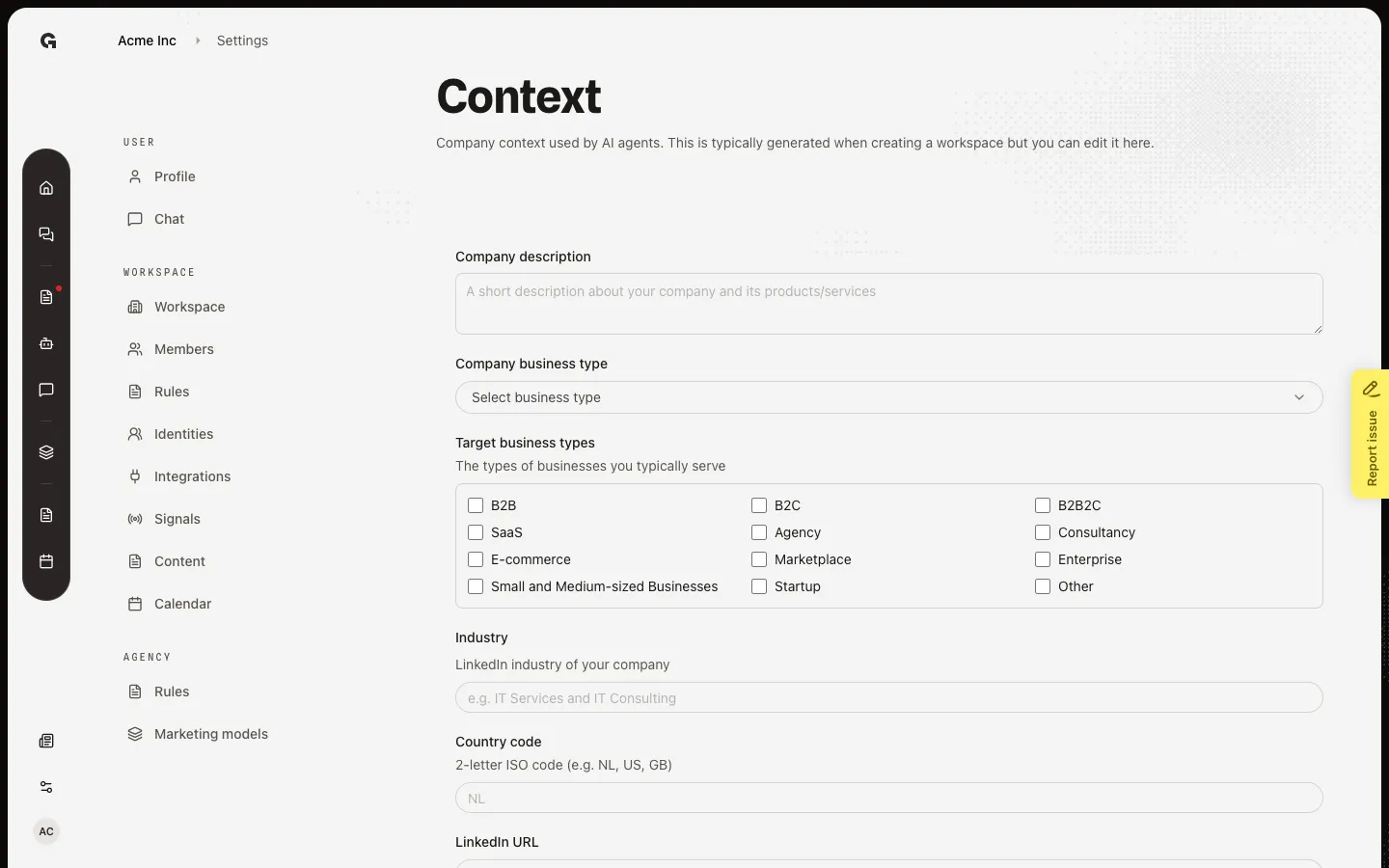
Set how the company works
Company description is a short account of what the company sells. Company business type is one label (B2B, Agency, SaaS, and the rest). Target business types are the kinds of businesses you serve. Industry is the LinkedIn industry. These fields steer chat, agents, and generated copy toward the right company.
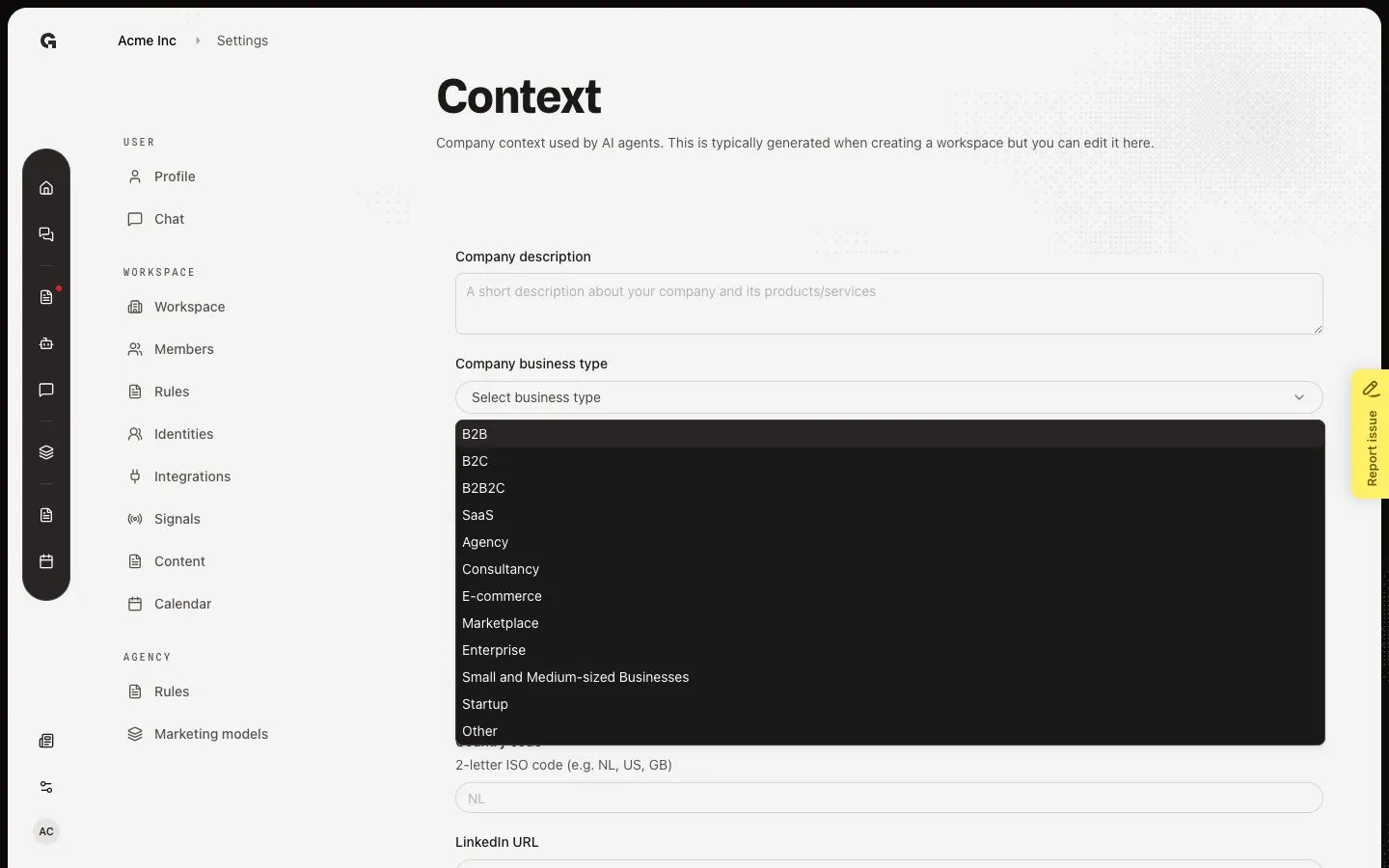
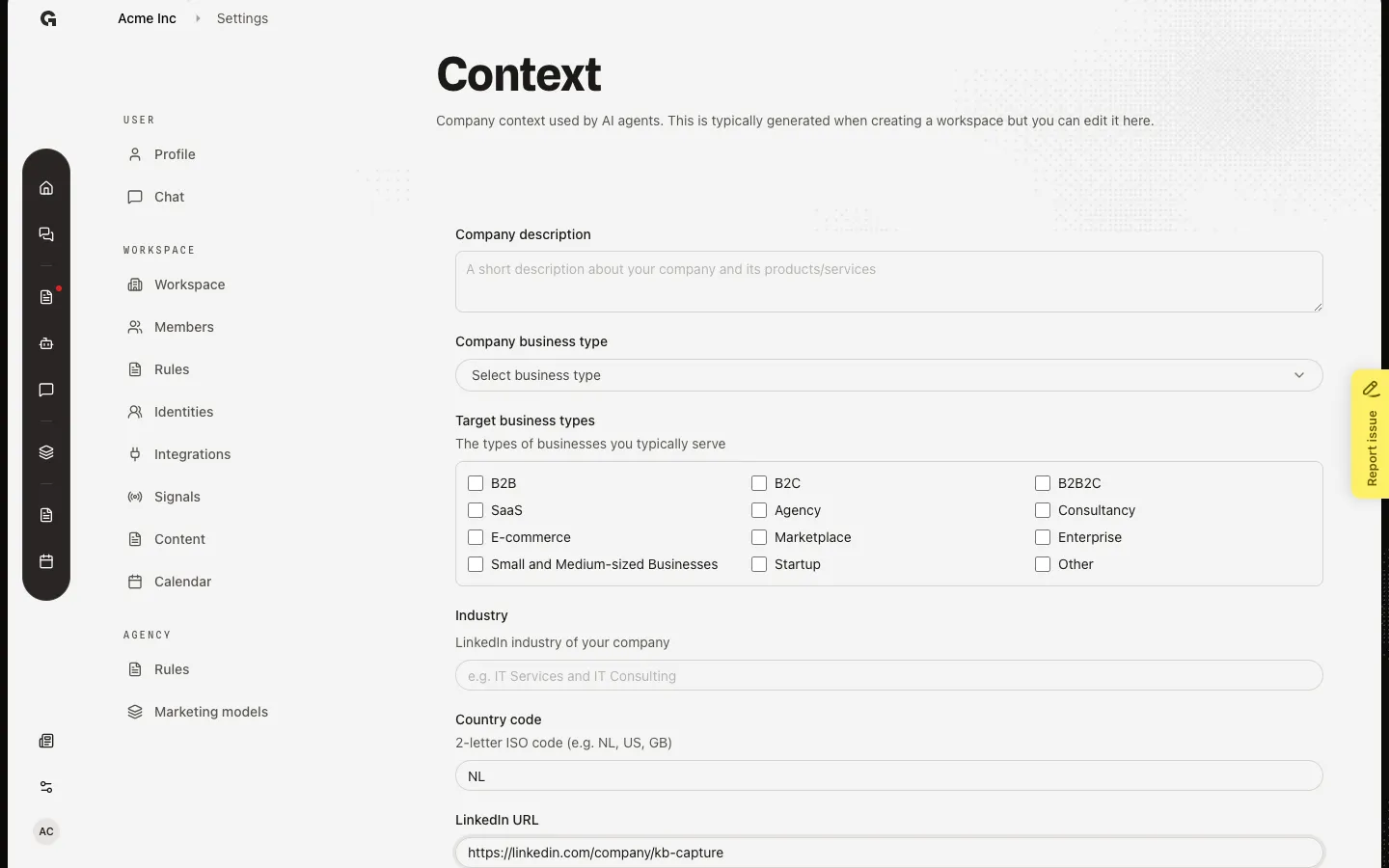
Set country and social URLs
Country code is a 2-letter ISO code such as NL or US. Sync holidays on Manage special dates uses this country (or a country taken from timezone) to load public holidays. LinkedIn, Twitter/X, Instagram, and Facebook are optional. Empty URLs save as unused. Choose Save when you finish.
FAQ
I cannot open Context.+
You need permission to update the workspace. Ask an admin. The Context page and the Context tab use the same form.
What changes if I edit Context?+
AI agents read this company block in chat, onboarding, and generated text. A wrong industry or description produces off-brand answers. Name, website, language, and timezone stay on Edit workspace settings.
Sync holidays says it cannot determine a country.+
Set Country code here, or set a timezone that maps to a country on Edit workspace settings. Then open Manage special dates and choose Sync holidays again.
Can Growf refill Context from the website?+
Not from this screen. Context is edited by hand. Set the website on Edit workspace settings if you need a public domain for other features.