Brief a designer from a post
Ask a teammate to make the image for a post, email or article in Content mode: Growf AI drafts the brief, you pick who makes it and by when, and the upload lands on the post.
Brief a designer, in the Media section of a social post, email or article in Content mode, asks a teammate to make its image. You need permission to edit content; Admin, Strategist and Creator have it by default. The person you brief needs it too, to open the post and upload the image.
4 steps · About 3 minutes
Open Brief a designer
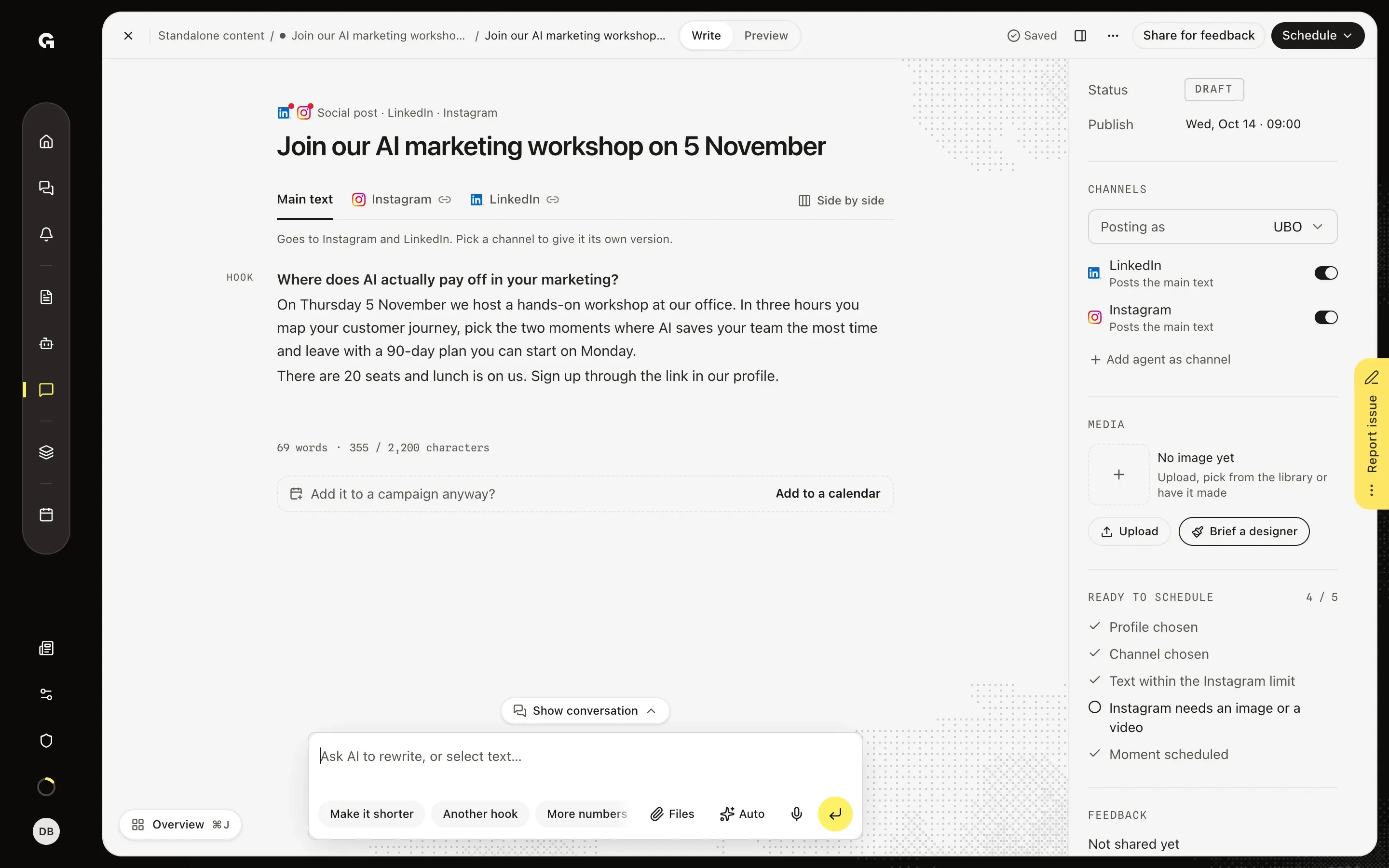
Open the post, email or article that needs an image. In its properties on the right, Media reads No image yet as long as it has no media, with Upload, pick from the library or have it made under it. Upload and the + tile are for a file you already have. To have a teammate make the image, click Brief a designer: the window Brief a designer opens beside it, and the next step goes through it.
Write and send the brief
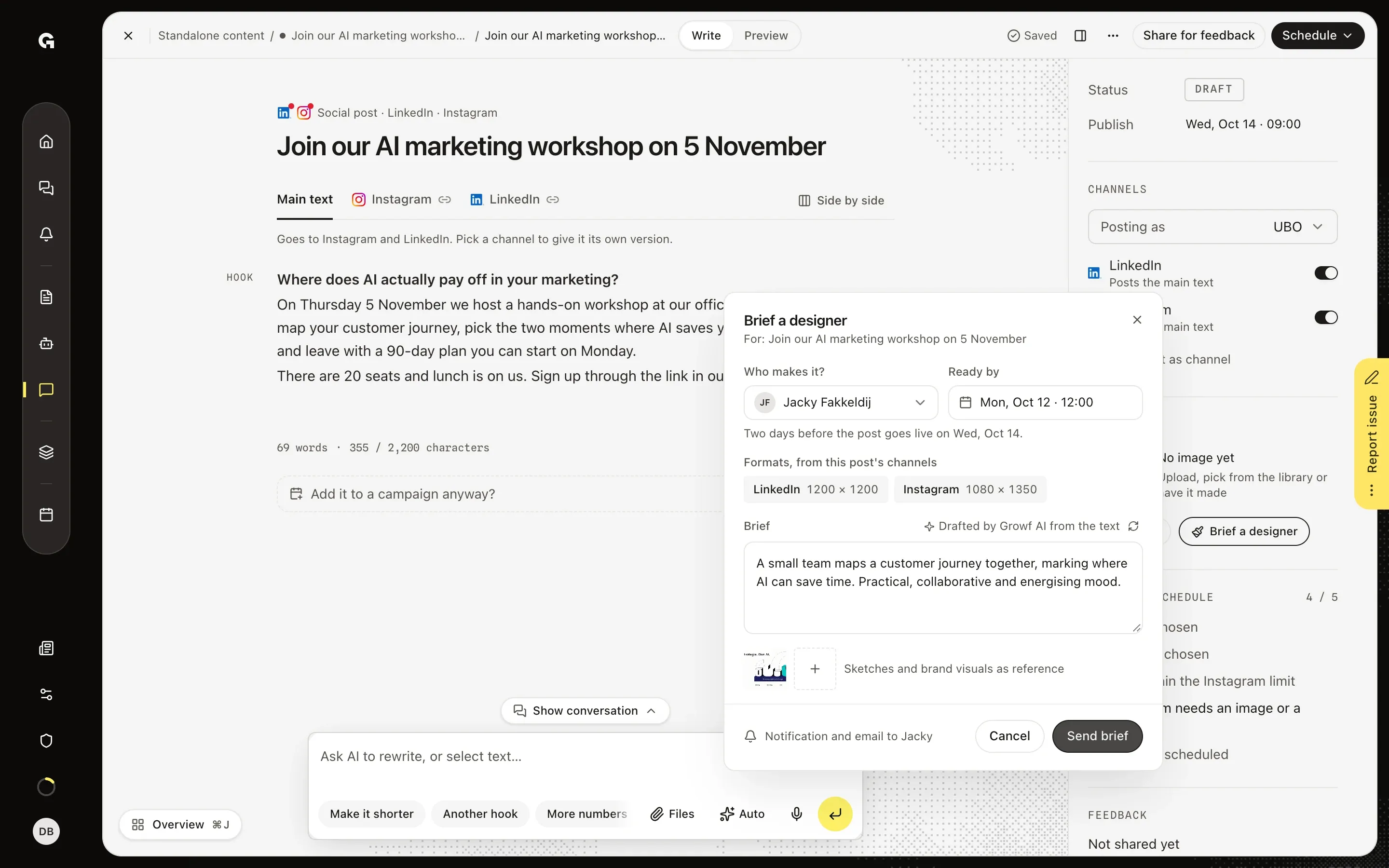
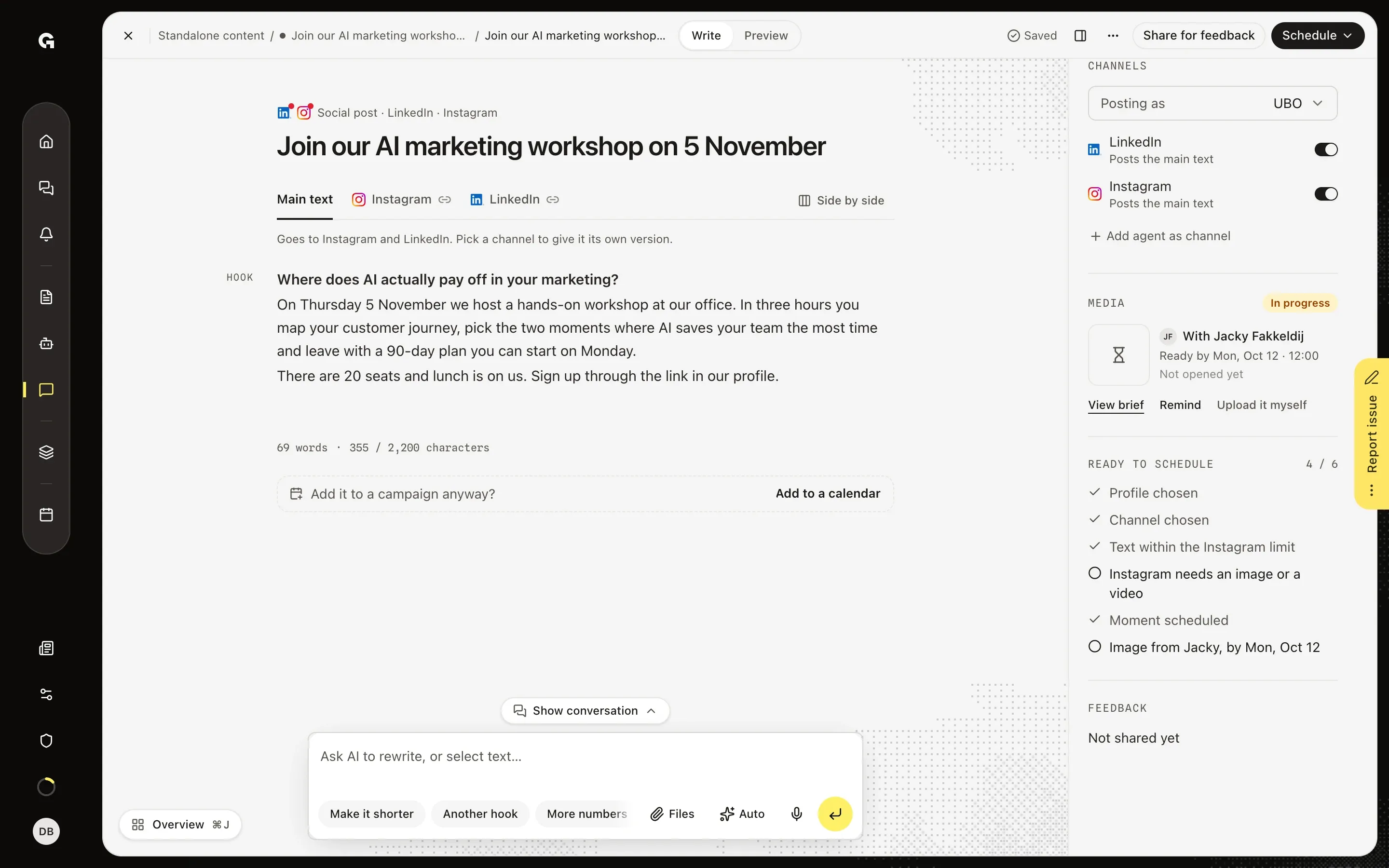
In the window Brief a designer, click Choose someone under Who makes it? and pick a member of the workspace. Ready by is set to two days before the post goes live, at 12:00, or to tomorrow at 12:00 when the post has no date yet or that moment has passed; click it to pick another day and time. Formats, from this post's channels lists the sizes to deliver, such as LinkedIn 1200 × 1200, and an article or email gets Header 1600 × 900. Under Brief, Growf AI drafts the brief from the text of the post as soon as the window opens, which uses AI credits; Draft again writes a new one, and the + tile beside Sketches and brand visuals as reference adds up to 10 files from the media library. The line beside Send brief reads Notification and email to, followed by the first name of the designer; click Send brief, and the message Brief sent to appears with Undo. Media then reads In progress with who has the brief, Ready by and Not opened yet.
Follow up on the brief
Click View brief to see what you sent: who makes it, Ready by, the formats, who sent it and when, the brief itself and any references, each opening in a new tab. Once the designer opens the post, Not opened yet changes to Brief opened at with the time, or Brief opened on with the day and time when that was before today. Remind sends them a reminder in the app and by email; after that it reads Reminded at with the time, and you can remind them again an hour later. Upload it myself opens the media library: the file you add goes on the post, and the brief is taken back. While the brief is open, Ready to schedule lists Image from, followed by the first name of the designer and the day.
Make the image as the designer
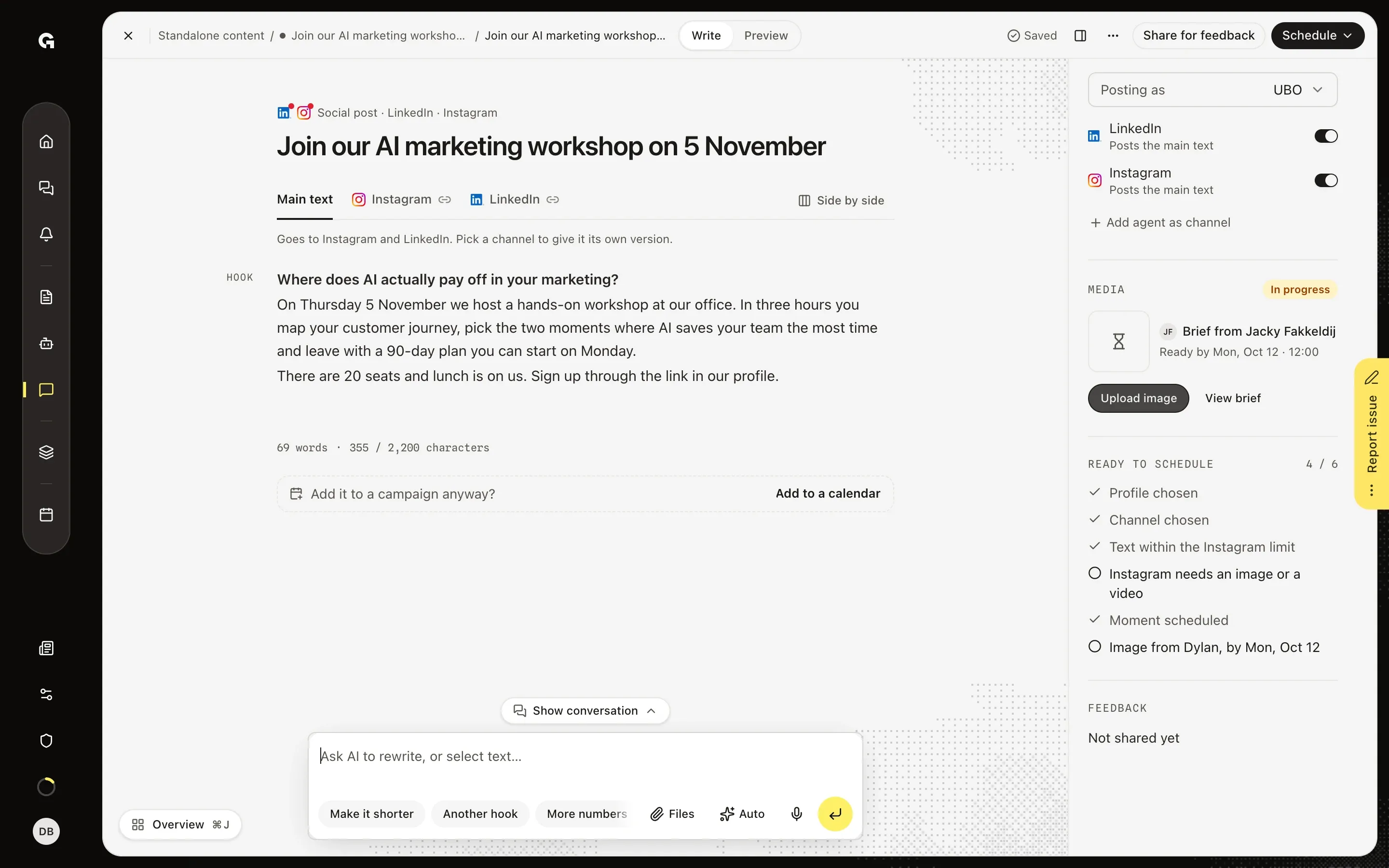
The designer gets a notification, Image requested, and an email with the brief, the formats and the Ready by moment. The button Open the brief in that email signs them in and opens the post. In Media they see Brief from, followed by the name of whoever asked which KB Member asked you to make. View brief shows the whole brief, and Upload image opens the media library on its Upload tab. The file they upload or pick lands on the post, the brief is done, and whoever asked gets the notification Image ready.
FAQ
How do I take a brief back?+
Right after you send it, click Undo in the message Brief sent to. The message stays a few seconds, longer while you point at it, and Undo works while the message shows, at most 20 seconds. The designer hears nothing, because the notification and email only go out after that, and Growf shows The brief was taken back. Click Brief a designer again to find the brief as you left it, change it and send it again. Later on, Upload it myself is the way back: once you add a file, the brief is taken back. A brief you sent cannot be changed.
Can the brief go to Asana or another project tool?+
Yes, when the workspace has a project management tool connected that you may use, such as Asana, ClickUp or Productive. The window then starts with Send to, with that tool and Email. Growf picks the one you used last time in this browser, or else the first tool, so the first time the button reads Create task until you pick Email. With a tool picked, the line beside the button reads Through the chat to, followed by the tool. Create task opens a new conversation named Brief: and the name of the post, and sends the brief there as your message, with the tool mentioned, the person under Who makes it? as the assignee and the references attached. The chat creates the task and asks you which project or list it belongs in when that is not clear; like any chat message, this uses AI credits. Growf sends no notification itself then, and Media does not show In progress.
Why can't I schedule or publish a post with an open brief?+
Growf waits for the image. Ready to schedule lists Image from, followed by the first name of the designer and the Ready by day, so you can open Schedule, but the Schedule button in it stays off. When you schedule several posts at once, this one is skipped because of an image a designer is still making. Publish now is refused as well: Not published: an image a designer is still making. This clears as soon as an image is on the post, whoever adds it: the designer, you or the chat. A post that is already scheduled stays scheduled and goes out at its moment, with or without the image; click Unschedule first if it should wait for it.
Why don't I see Brief a designer?+
Brief a designer only shows on a social post, email or article without media and without an open brief. When the post has media, Media shows the thumbnails; while a brief is open, it shows the brief. A locked post shows no Brief a designer either: it is published, waits for feedback that locks it, or an agent channel is working on it. You also need permission to edit content, which Admin, Strategist and Creator have by default.
Who can I brief?+
Any active member of the workspace, yourself included. Pick someone who can edit content, such as an Admin, Strategist or Creator: they open the post from the email and upload the image there, and without that permission they cannot. Growf remembers who you briefed last time in this browser. To add a designer to the workspace, see **Invite and manage workspace members**.