Manage workspace rules
Add, edit, and remove workspace rules that agents follow in this workspace.
Workspace rules are standing instructions for AI in **this** workspace: tone, markets, and how you want work done. They are for people who can update the workspace. Anyone who can open Settings Rules can read them.
3 steps · About 3 minutes
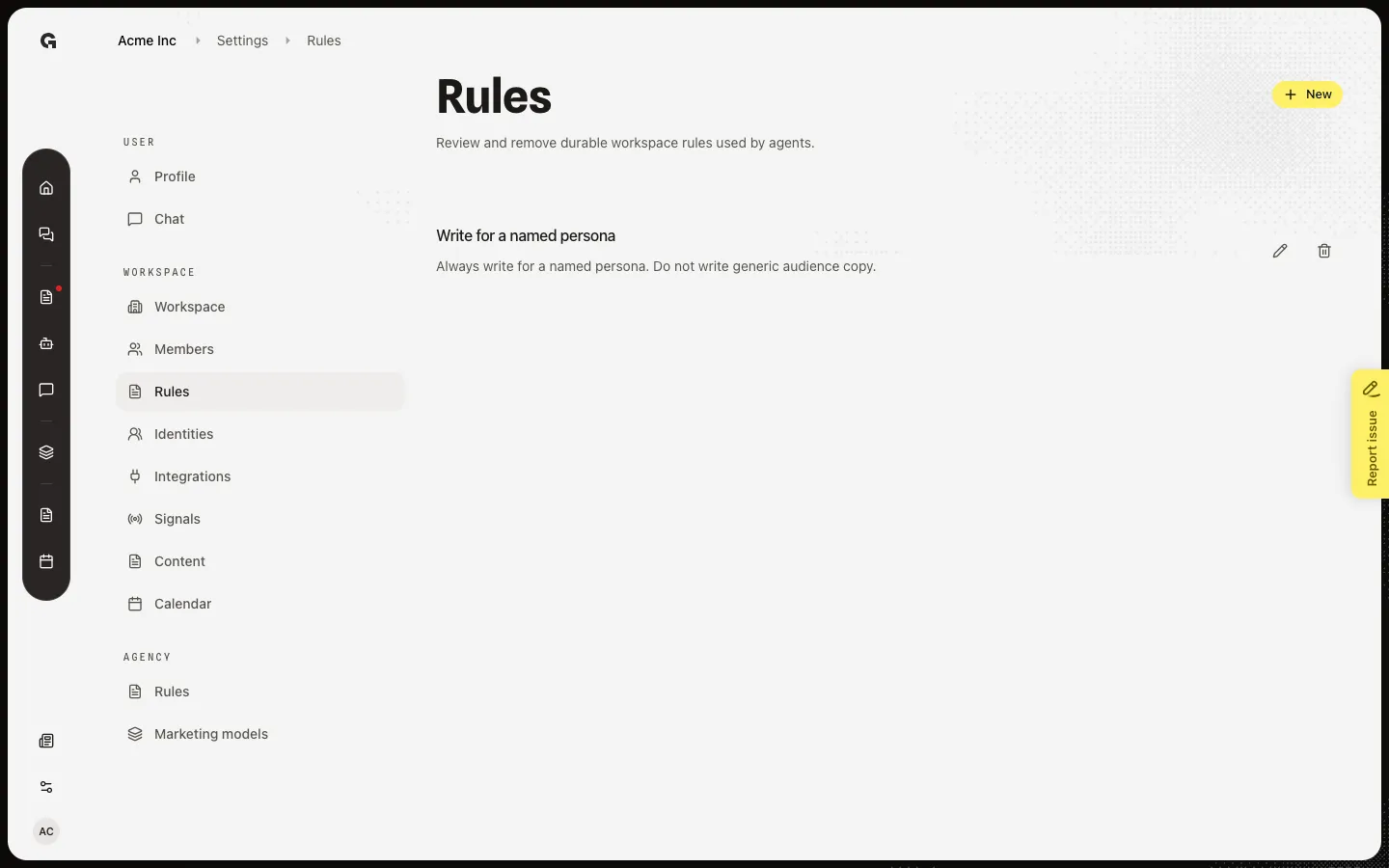
Open Rules
In Settings, under Workspace, choose Rules. Each rule shows a label and the instruction agents read. These rules apply only in this workspace. Agency-wide rules are Manage agency rules. Chat, agents, and generated copy use both sets.
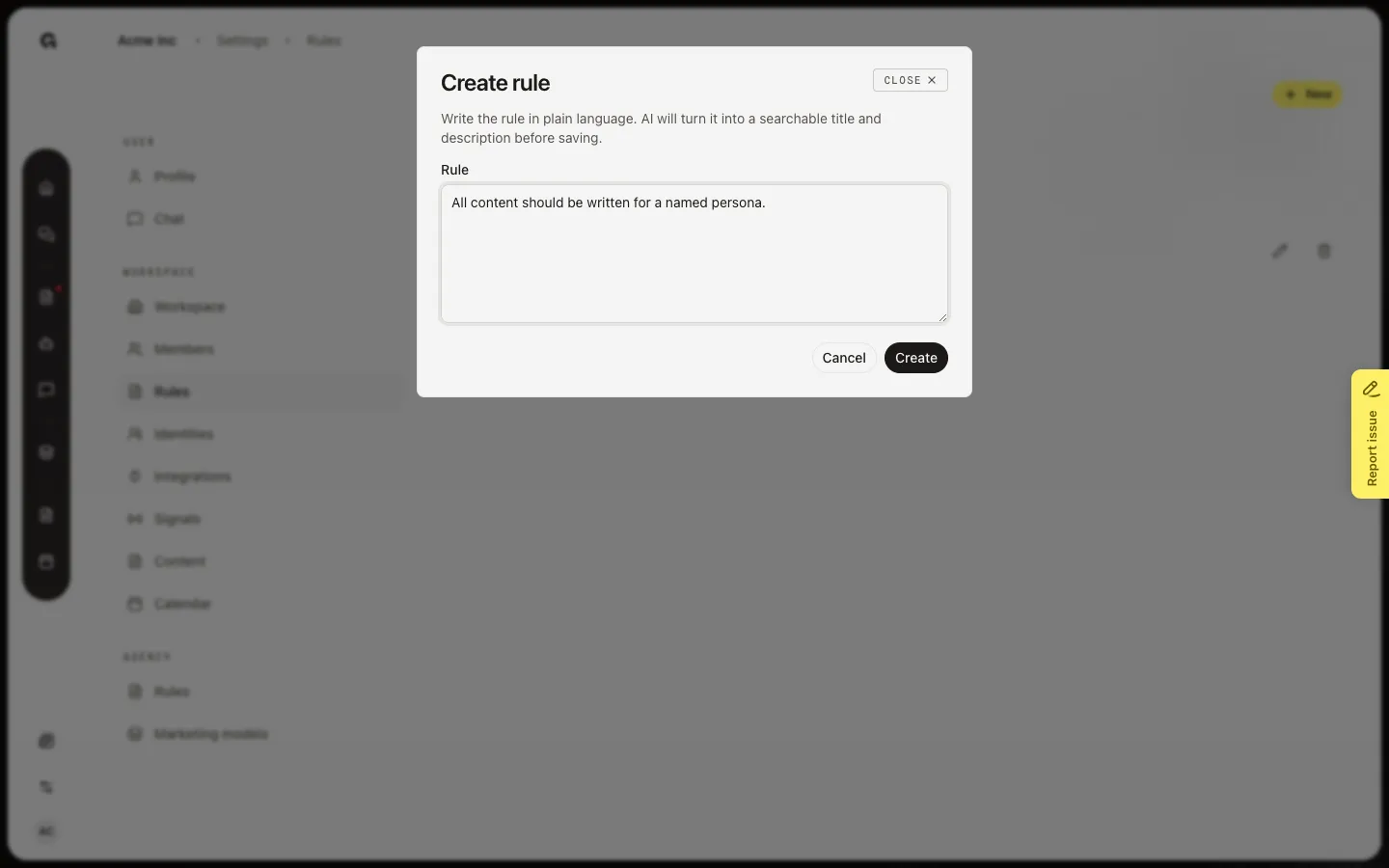
Open Create rule
Choose New (you need permission to update the workspace). Create rule has one field, Rule. Write the instruction in plain language, such as All content should be written for a persona. On Create, AI turns that text into a label and instruction. Do not put a one-off chat request here. Use a rule you want agents to follow every time.
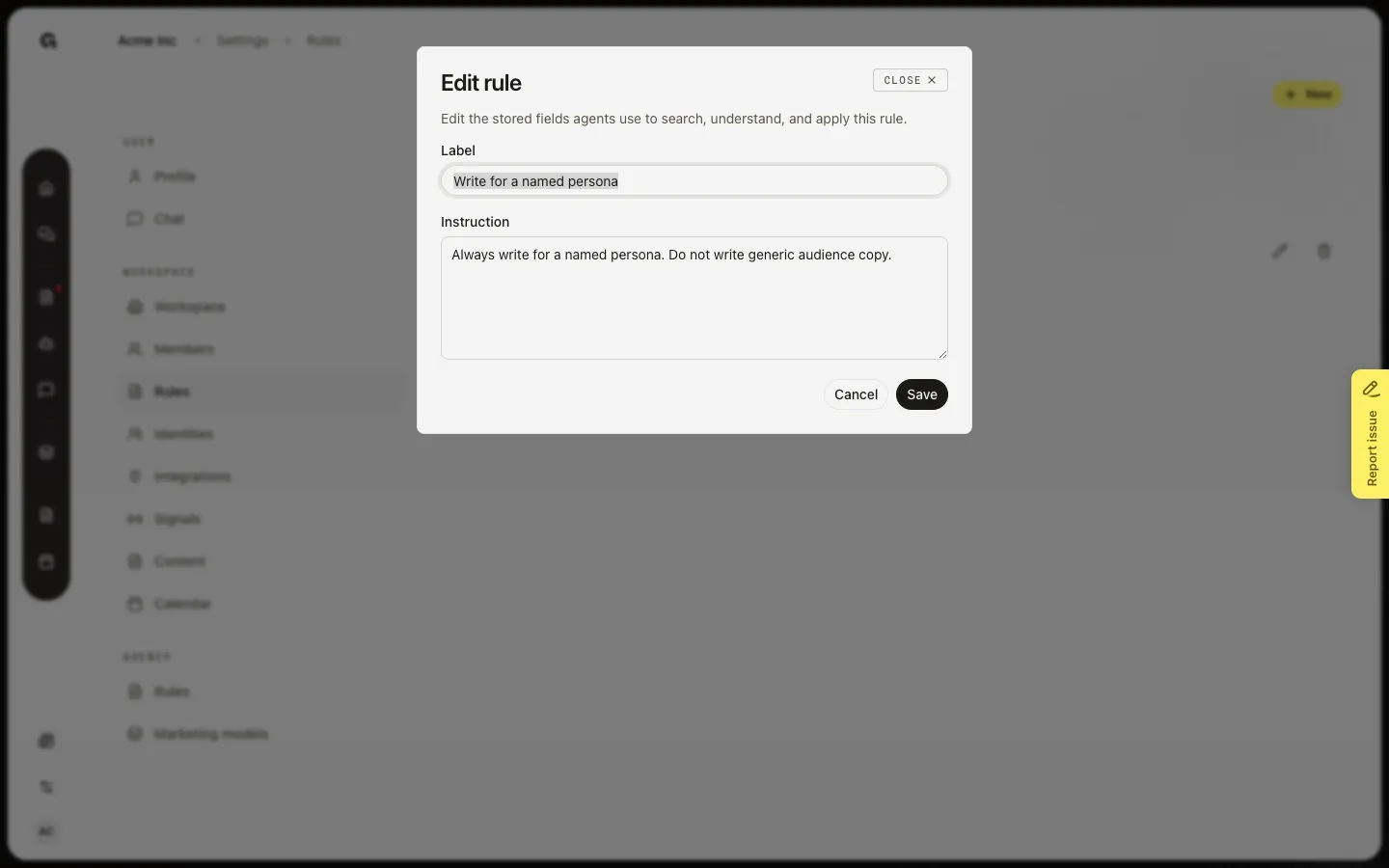
Edit or remove a rule
On a saved rule, choose Edit. Edit rule has Label and Instruction, not the original draft. Change the text agents should follow, then Save. Remove asks you to confirm, then deletes the rule. Names used in the background cannot be changed after Create.
FAQ
I can see Rules but not New or Edit.+
Reading rules needs workspace access. Adding, editing, and removing need permission to update the workspace. Ask an admin.
Should I add a workspace rule or an agency rule?+
Use a workspace rule for this client only (tone, market, or offers that do not apply elsewhere). Use Manage agency rules for defaults that should apply to every client. Agents read agency rules first, then workspace rules.
The page shows How to use Rules and no list.+
No custom rules are saved yet. Onboarding and agents can add some. Choose New to write the first one.
Create failed or asked for more text.+
The Rule field cannot be empty. If a rule with the same internal name already exists, pick different wording and try again.