Copy a reply or table from the chat
Copy a chat reply with its formatting, copy a table as rows and columns, and download a diagram from a reply.
Copy takes a chat reply out of Growf with its formatting, so you can paste it in a document or email. Tables have their own Copy table, which pastes as rows and columns, and diagrams can be downloaded. Everyone who can open the chat can copy; Admin, Strategist and Creator can by default.
3 steps · About 3 minutes
Copy a reply
Under every reply sits Copy. Click it and Copied shows for a moment. The reply is copied with its formatting: headings, bold text, lists, links and tables keep their layout when you paste it in Word, Google Docs or an email. Where only plain text fits, you get clean text without markdown signs.
Copy a table
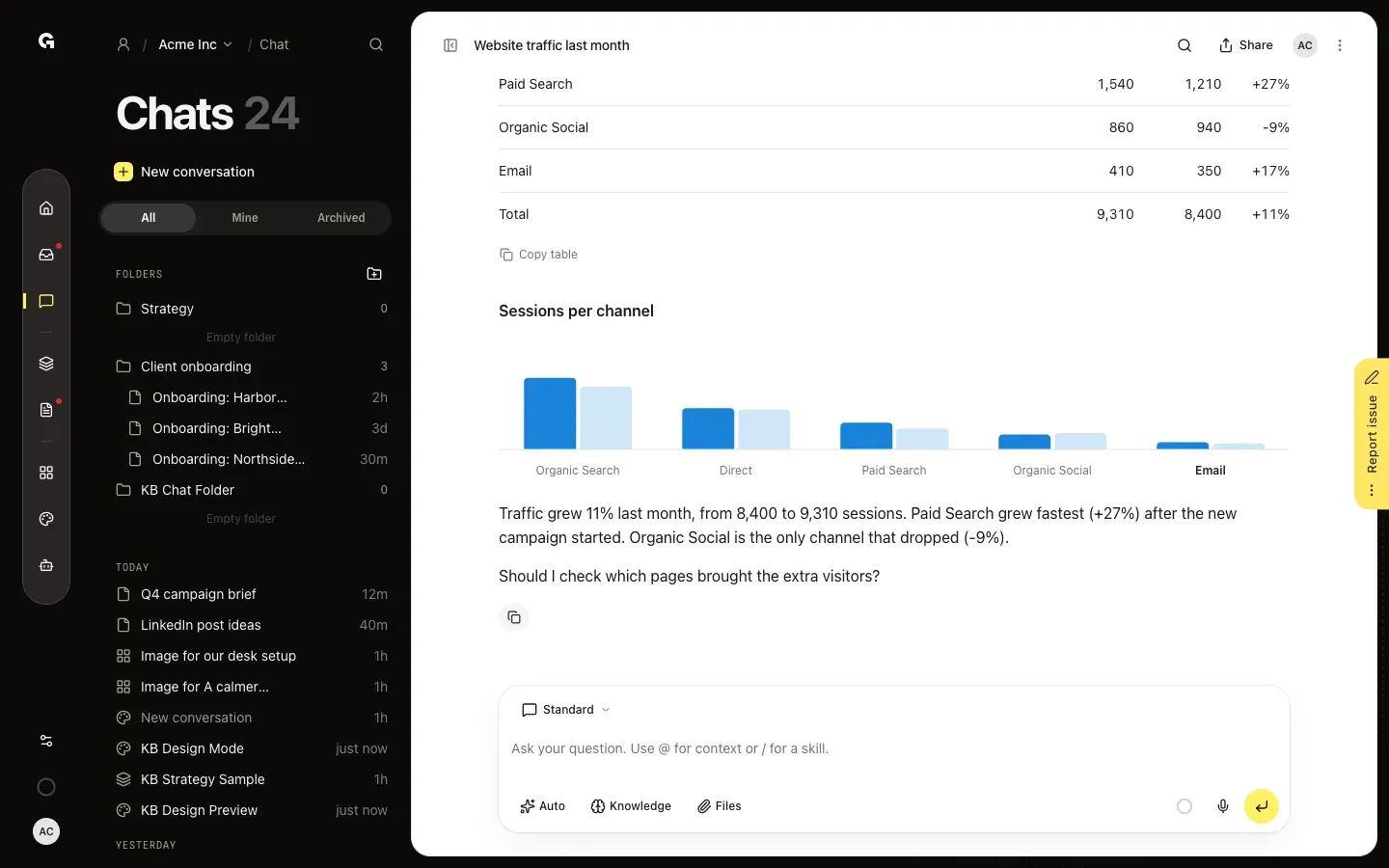
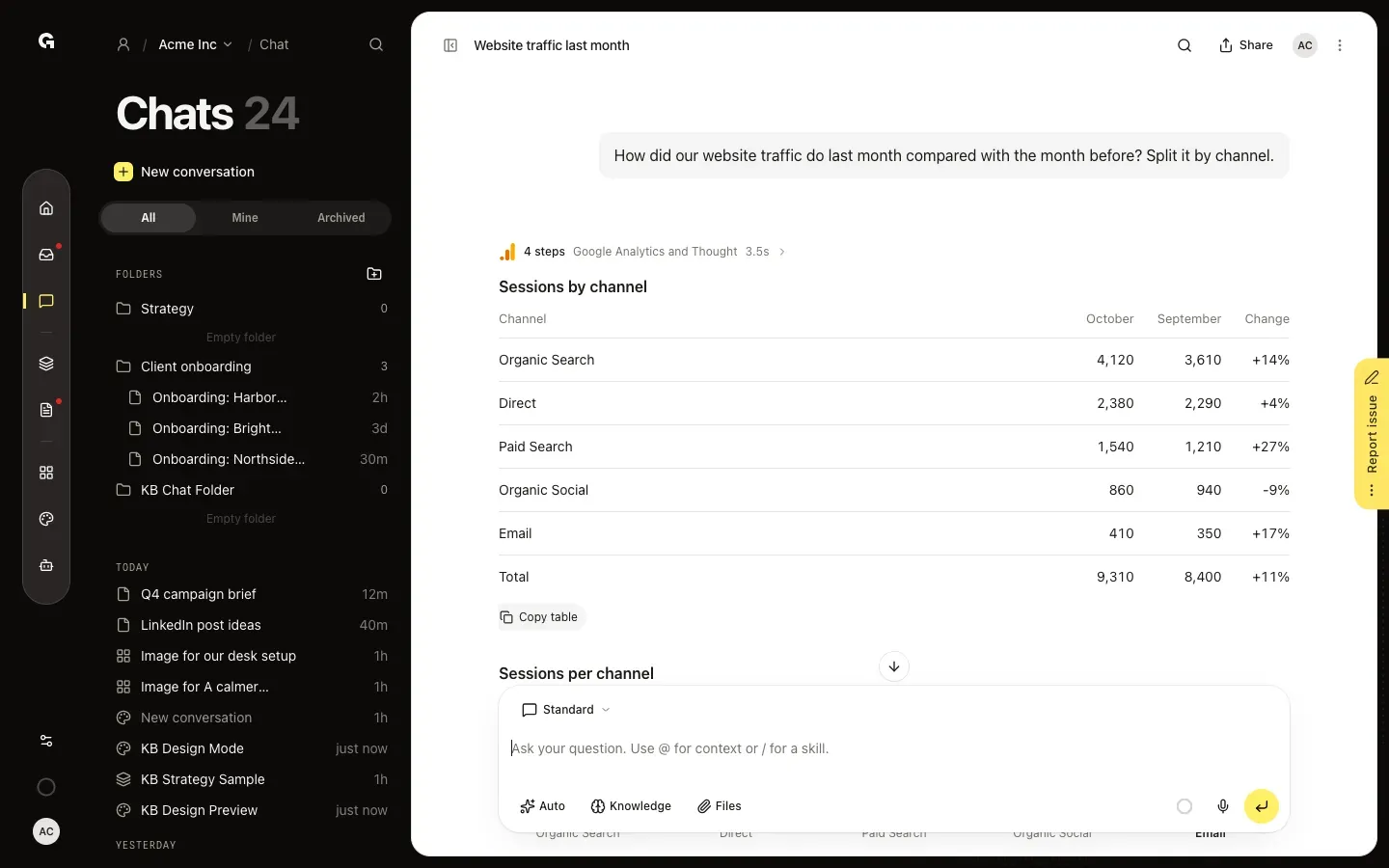
When a reply contains a table, Copy table sits under it. Click it, then paste in Google Sheets, Excel, Word or Canva: the table arrives as rows and columns. Charts have no copy button; ask the chat for the figures as a table when you need them.
Download a diagram
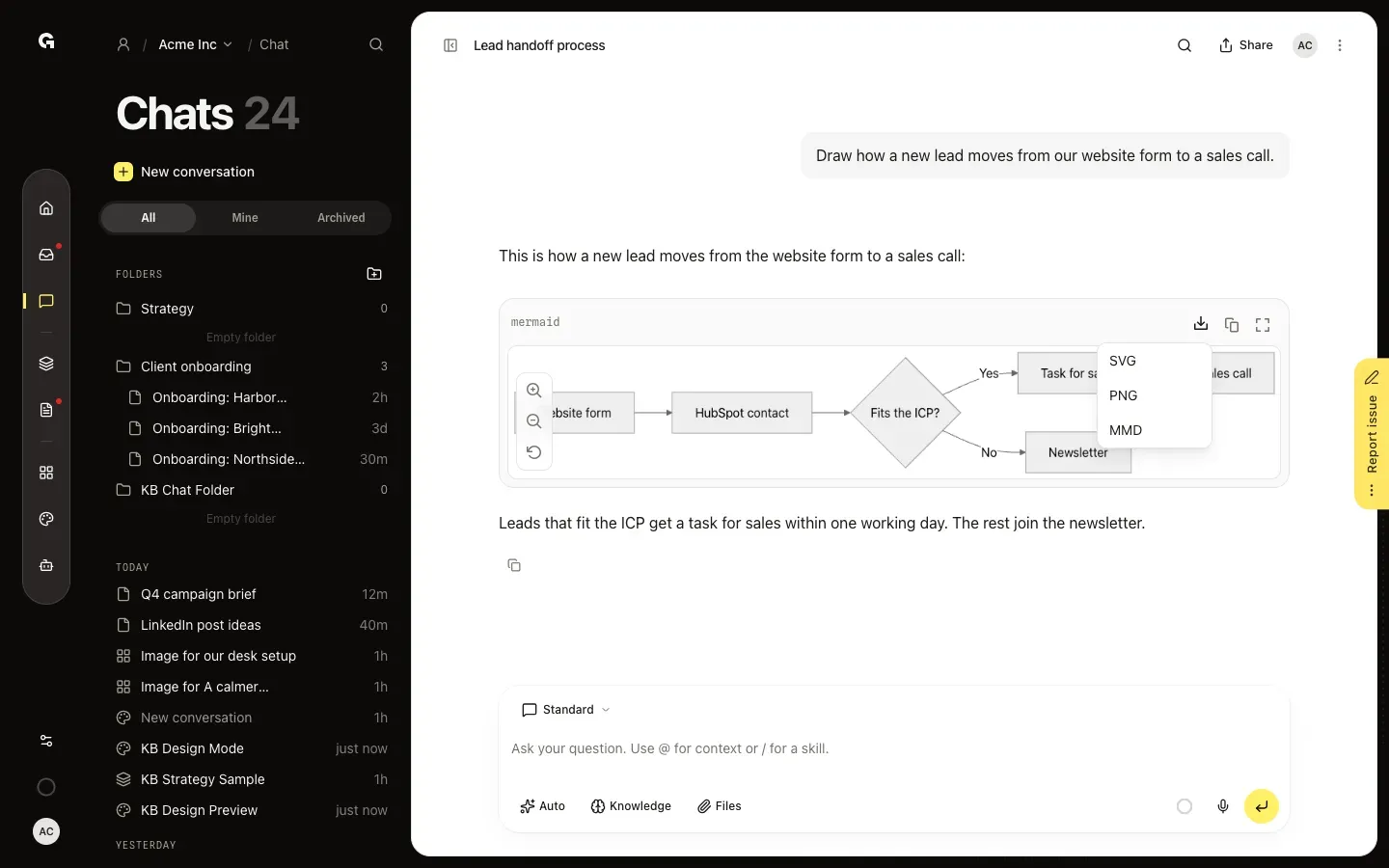
A diagram in a reply has buttons at the top right: Download diagram, Copy code and View full screen. Download diagram offers SVG, PNG and MMD, the Mermaid code you can open in other tools. The buttons on the left zoom in and out.
FAQ
I selected part of a reply and copied it. Why is the formatting gone?+
Text you select and copy yourself is copied as plain text. To keep headings, lists and tables, click Copy under the reply.
How do I copy an email or post the chat wrote?+
When the chat shows an email, social post or ad as a preview, it has its own button: Copy email, Copy post or Copy ad.
Can I copy my own messages too?+
Yes. Point at your message and click Copy. Your own messages are copied as plain text; paste one back into the message box and its mentions come back as well.
I see Couldn't copy the message.+
Your browser did not allow Growf to copy. Click somewhere in the page and try again. For a table, the message is Couldn't copy. Try again.