Turn an article into posts
Let the chat turn an article, chapter or page into social posts and a newsletter item that land as drafts in the same project.
In Content mode, the chat can turn a finished article, chapter or page into new content: social posts, a newsletter item or a post that sums it up. You need permission to create and edit content and to write in the chat; Admin, Strategist and Creator have these by default.
3 steps · About 3 minutes
Open the article you want to reuse
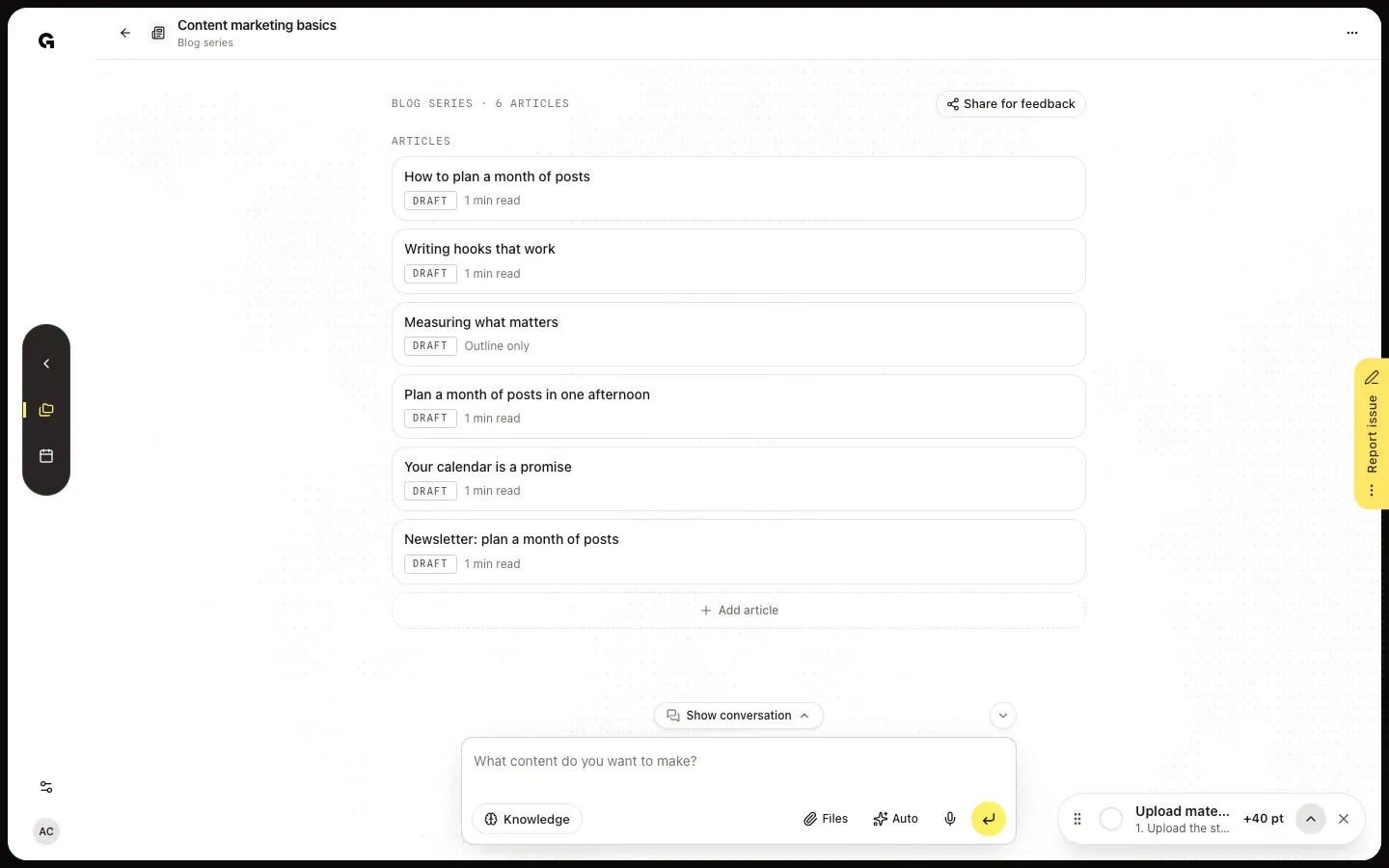
Open the project with the article, chapter or page you want to build on, here the blog series Content marketing basics, and click the article in its list. You can also type its name in Search projects and items… on Content projects and click it under Items. Posts made from an article land at the end of the same list, as the two LinkedIn posts and the newsletter item here show.
Click Derive posts
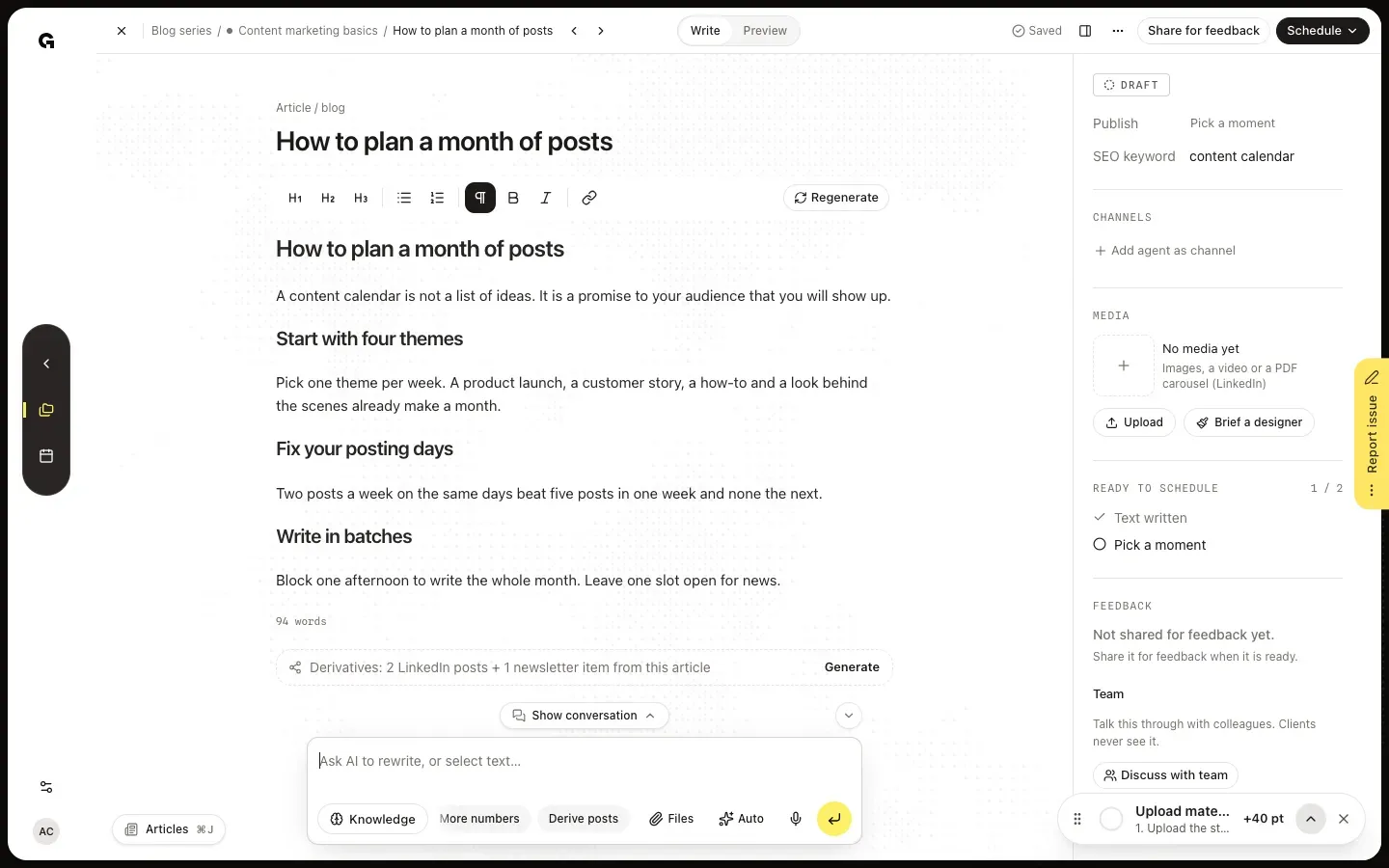
With an article open, the chips under the prompt include Derive posts. It asks the chat for two LinkedIn posts and one newsletter item based on this article, and sends the request right away. In a blog series the line Derivatives: 2 LinkedIn posts + 1 newsletter item from this article sits under the text; Generate next to it sends the same request. On a published item the chips offer Make a derived post instead: a new post on the same subject with a fresh angle. A chapter or page has no Derive posts, so ask in your own words.
Check the new posts
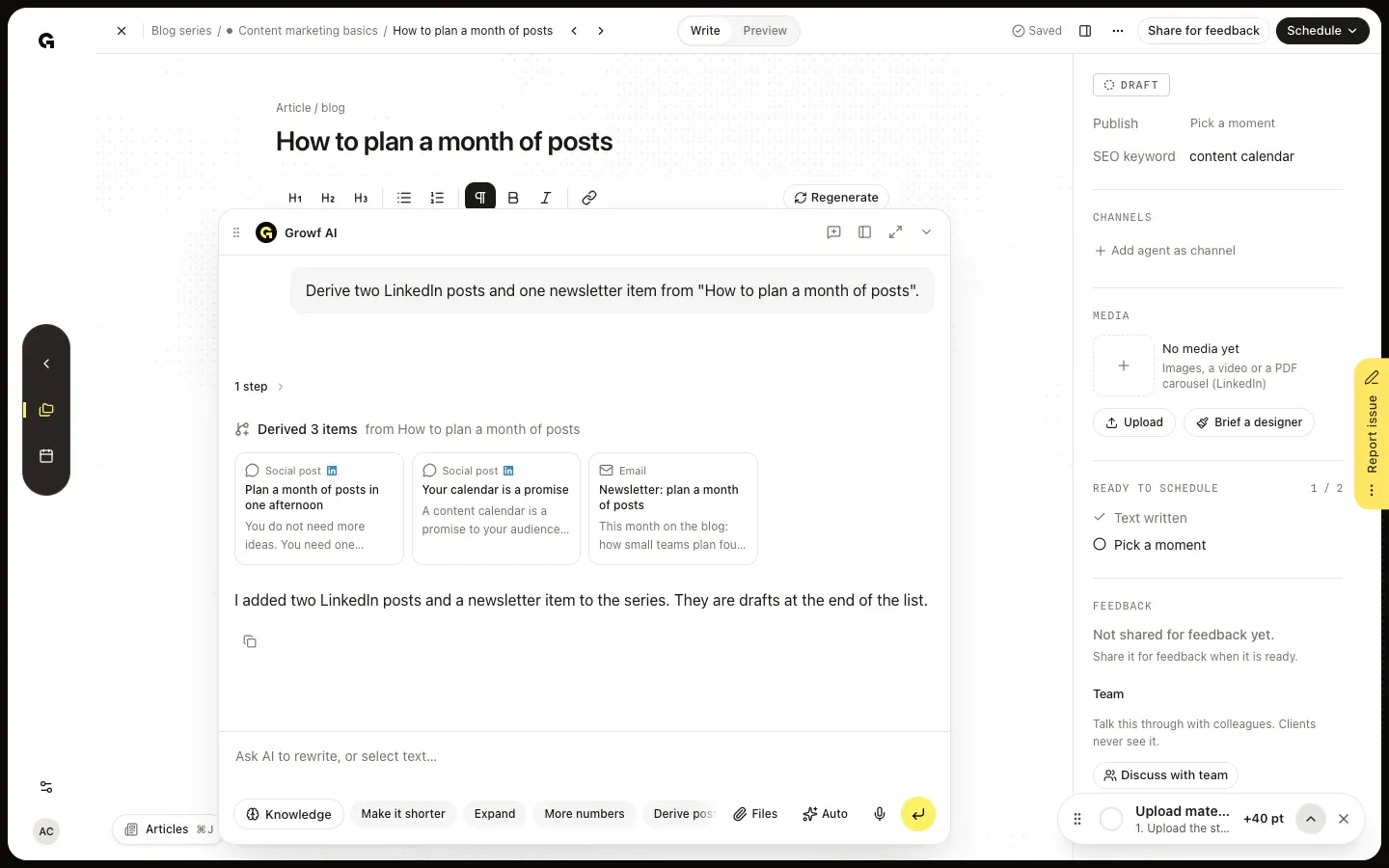
Show conversation above the prompt opens the chat. When it is done, its card reads Derived 3 items, from the article it started with, with a card for every new item: click one to open it. For another mix, type what you need in the prompt, such as three LinkedIn posts and one email for customers, each with its own angle; on a chapter or page you ask the same way. Open each new post to read it, rewrite it with the chips under the prompt, and pick its profile and channels before you schedule it.
FAQ
Where do the new posts end up?+
In the same project as the item you started from, at the end of its list: under Articles in a blog series, Chapters in a whitepaper, Pages in web copy and Items in Standalone content. In a content calendar they land on the day the chat gives them, or under Without a date. They are drafts, so nothing goes out until you schedule them. Social posts come with their text; a newsletter item or article starts from an outline and is written in the background, and until it is ready it shows The AI is writing this text… To put the posts in a content calendar instead, open that calendar and ask the chat there for posts based on the article, by its name. Posts made that way do not count for the Get started task.
Can I choose which posts the chat makes?+
Derive posts and Generate always ask for two LinkedIn posts and one newsletter item. For anything else, type it in the prompt: the channels, the number of posts, the tone or a call to action. A post only gets channels that are connected in the workspace, so connect the account first if it is missing. To change one of the new posts afterwards, open it and use the chips under the prompt, as **Rewrite a post with the chat** explains. For a different text per channel, see **Give a channel its own text**.
Can I duplicate a post?+
Content mode has no way to make a plain copy of a post. Ask the chat for a derived post instead. On a published post, click Make a derived post under the prompt. On a calendar, select one post and choose Make a derived post under For this item; the new post gets a fresh angle and a place in that calendar. You can also ask in your own words for a new draft based on a post.
Why don't I see Derive posts?+
Derive posts only shows on an article. On a chapter, a page, an email or a post, ask the chat in your own words. While a proposal from the chat is still open in the text, the chips under the prompt are about that proposal; accept or decline it first. The chip is greyed out while the article is locked, for example while it waits for feedback. Without permission to write in the chat you see no chips and no Generate. Every request to the chat uses AI credits, and so does writing a newsletter item or article in the background.