Edit workspace settings
Change the workspace name, website, language, and timezone, and read owner and status on Information.
Workspace settings are for people who can update the workspace: name, website, language, and timezone. Anyone with Settings can open Profile; Workspace appears only if you can edit the workspace.
3 steps · About 3 minutes
Open Workspace settings
In the sidebar footer, choose Settings (it opens Profile). In the Workspace group, choose Workspace. General shows the avatar, name, website, language, and timezone. Choose Update after you edit. Company facts for AI live on Edit company context, not here.
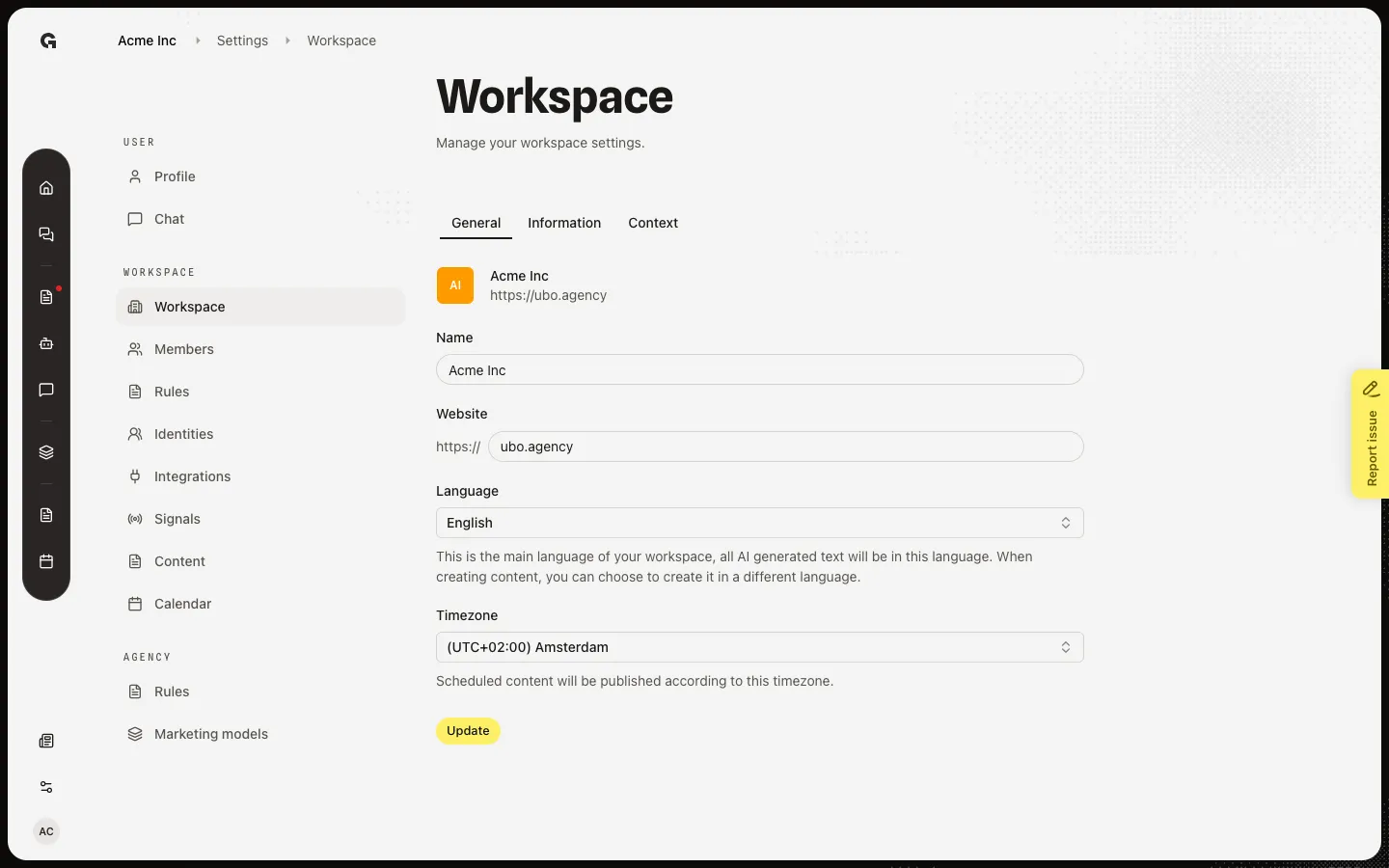
Set language and timezone
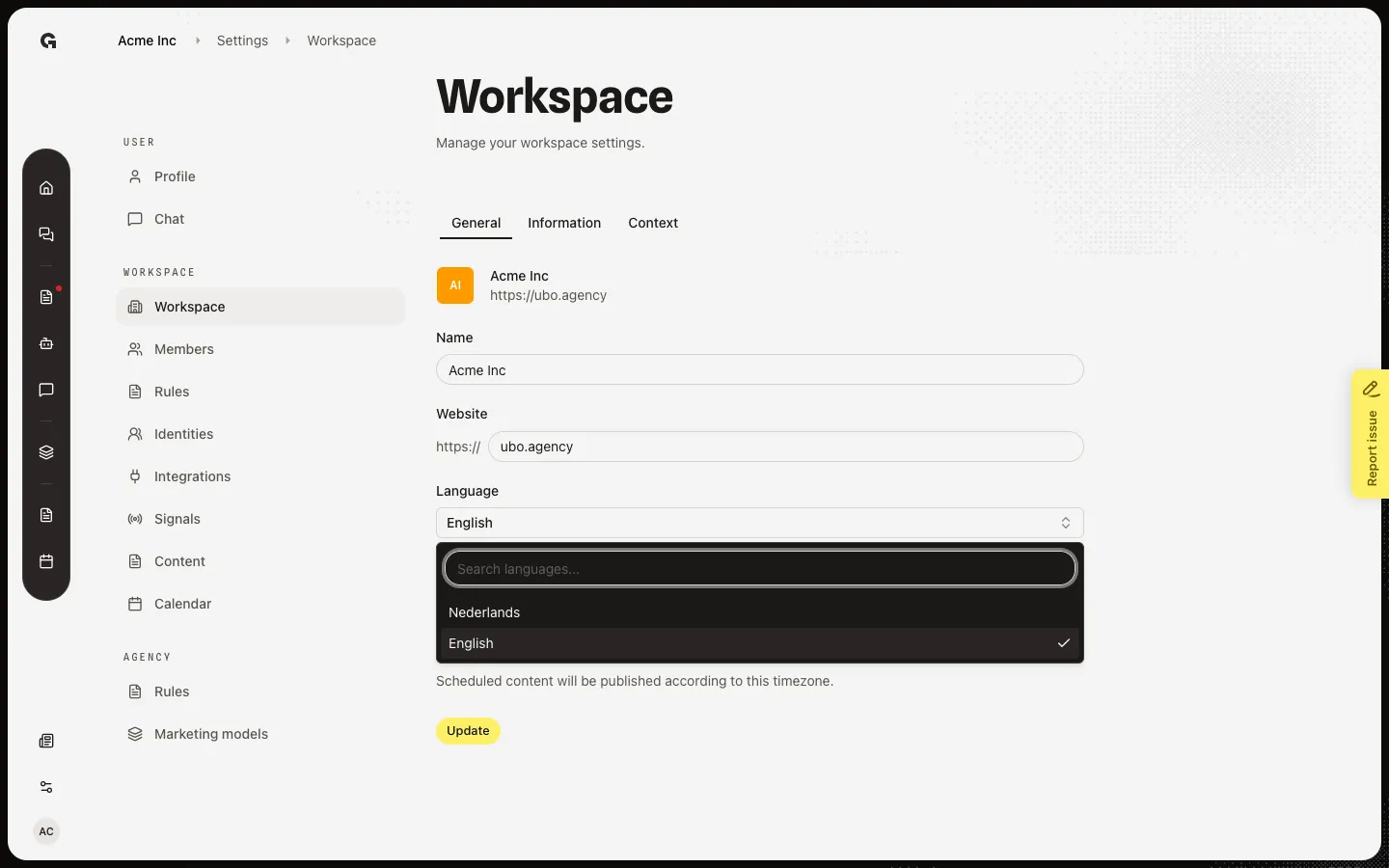
Language is the main language for AI text in this workspace. You can still pick another language when you create a piece of content. Timezone is when scheduled content publishes. Open Language to pick English, Dutch, or another listed language. These are workspace settings, not your personal Profile language.
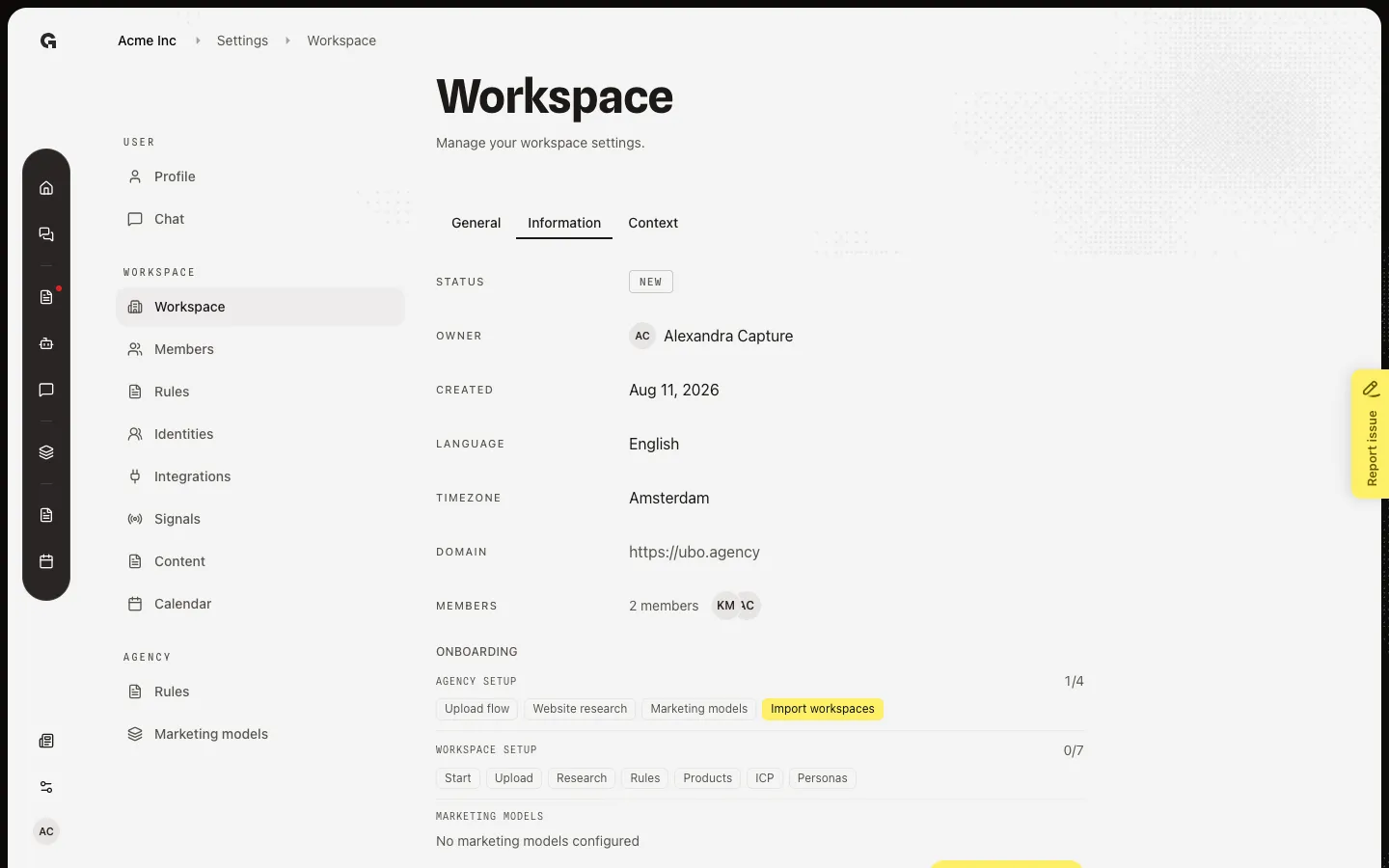
Read Information
Choose Information. This tab is read-only: agency workspace (on a client), status, owner, created date, language, timezone, website, and member count. Avatars open Members. If onboarding is still open, progress shows here. Marketing model badges show if the workspace has models.
FAQ
I do not see Workspace in Settings.+
You need permission to update the workspace. Ask an admin. Profile is personal and stays available under User.
Does Language here change the Growf interface?+
No. Workspace Language sets the default language for AI text. Your interface language is on Update your profile.
Update stays blocked after I change the website.+
Growf checks that the site is public and reachable. Wait for Website is reachable. Private, timed-out, or redirect-only URLs fail. A domain already used in this agency also fails.
What is the Context tab?+
It is the same company form as Edit company context. Use it to describe the company for AI. General is name, website, language, and timezone only.