Organize content in folders
Create, rename, move, and delete folders on the Content table so drafts sit in groups.
Folders group drafts on the Content table. Anyone who can create content can add a folder. The group is shared — teammates see the same folders.
4 steps · About 3 minutes
Open Content Table
Choose Content and stay on Table. Folders are rows with a folder icon. They appear only on Table, not on Board. New folder sits next to New.
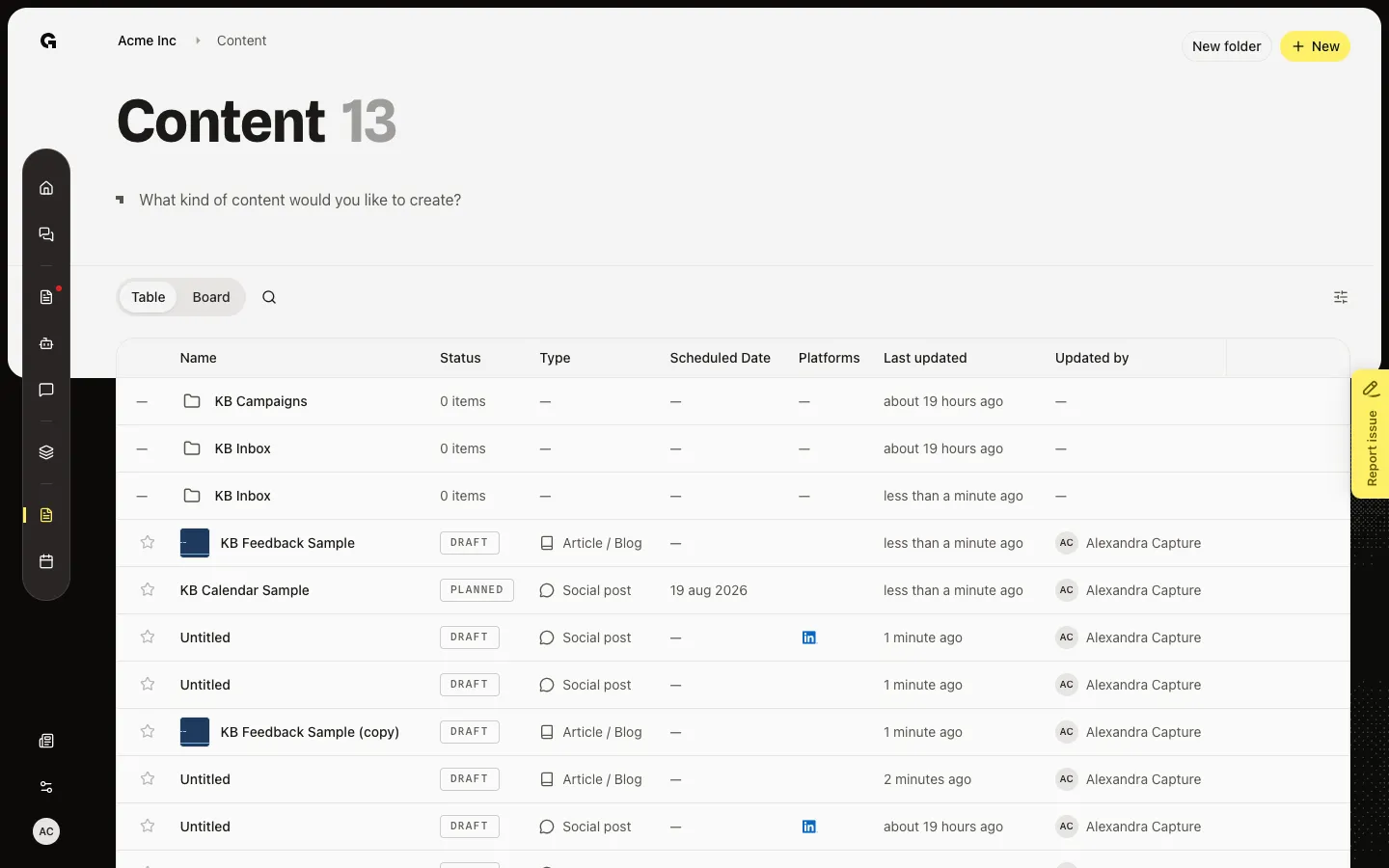
Open New folder
Choose New folder. Give the folder a name, then Create. The folder appears on this level. If you already opened a folder, the new one is created inside it.
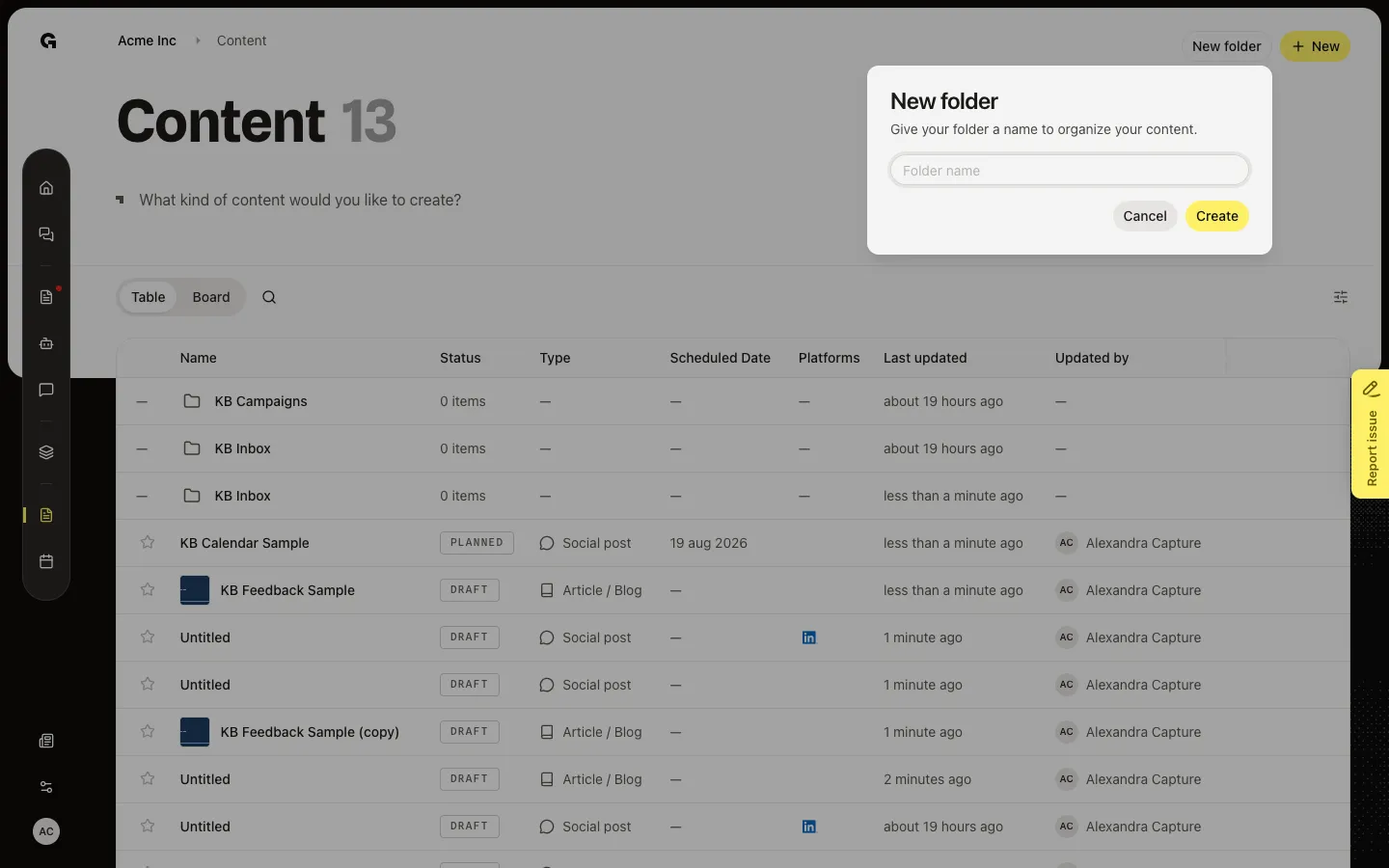
Create the folder
Type a name, then Create. Cancel closes the dialog. After it exists, hover the folder row to rename, move, or delete it. Delete only works when the folder has no items and no subfolders.
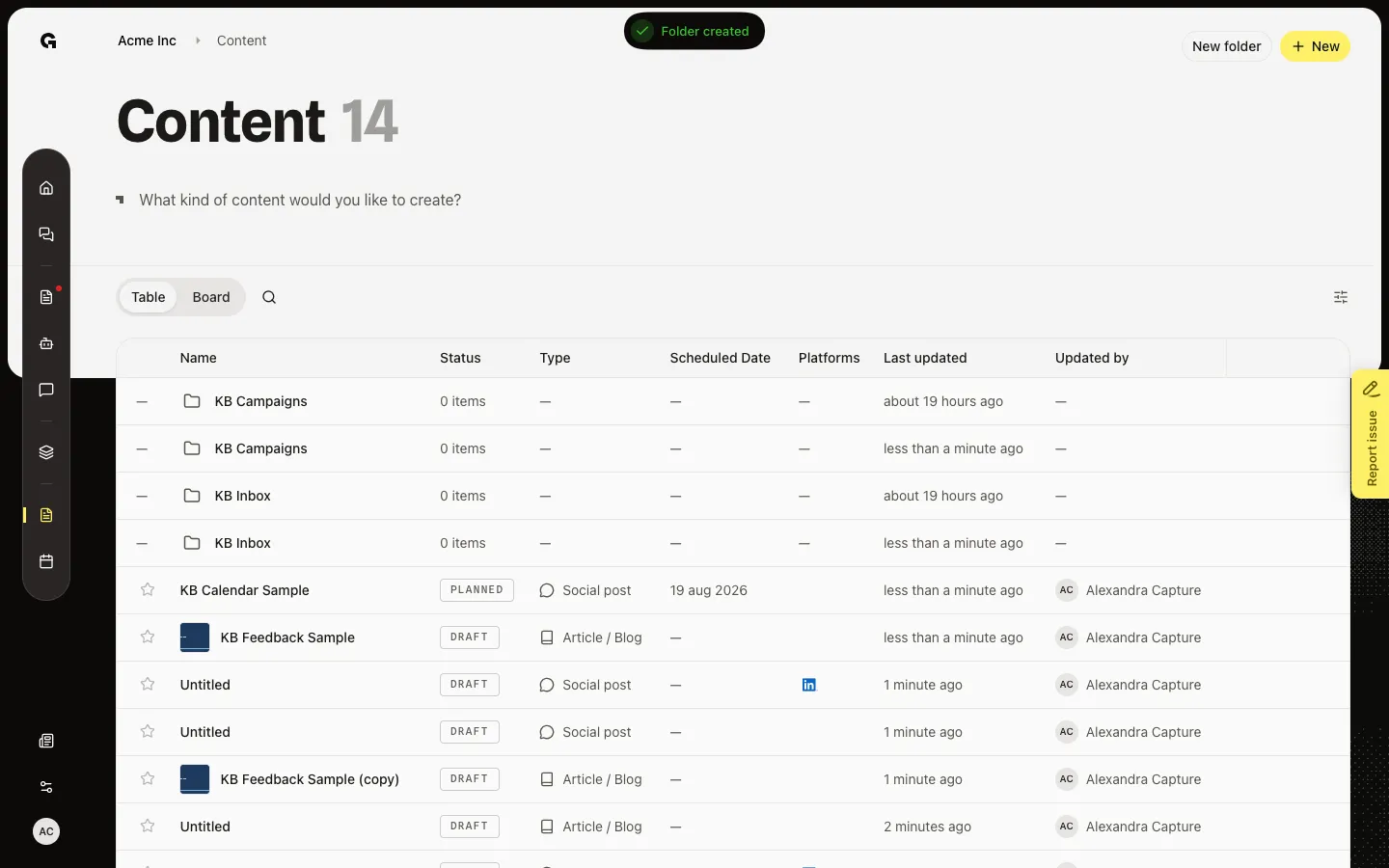
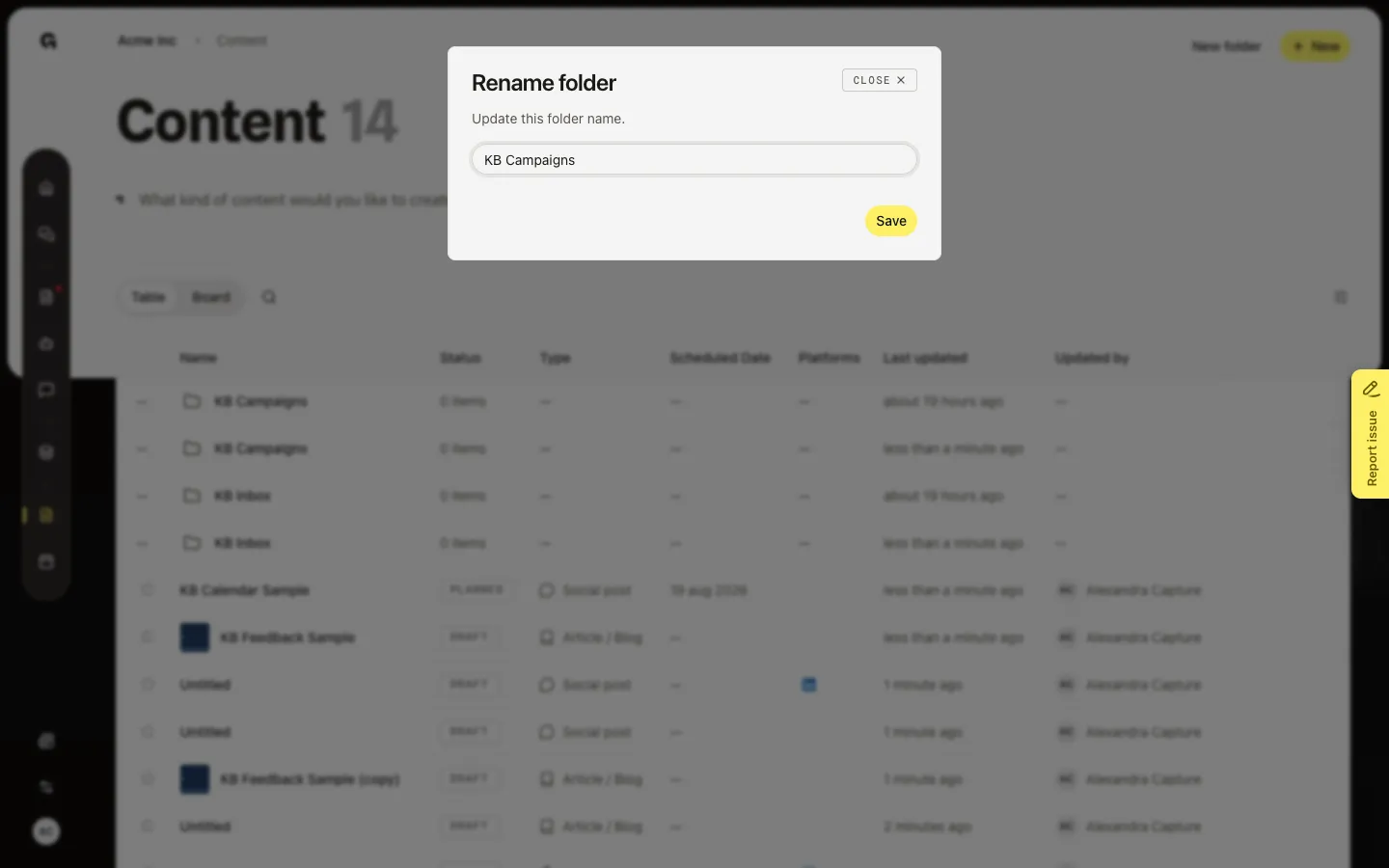
Rename a folder
Hover the folder row and click Rename folder. Change the name and Save. Open the folder to see its items. Use .. (Up one level) to return.
FAQ
I do not see folders on Board.+
Folders exist only on Table. Board lists every matching piece and ignores folders.
Why can I not delete a folder?+
The folder still has items or subfolders. Move or delete those first. An empty folder can be deleted.
What is the difference between New and New folder?+
New creates a content draft. New folder creates a group on the list. See Create marketing content for drafts.