Move content to a folder
Put a draft in a folder, or send it back to All content, from the Table row.
Move puts a draft in a folder so the root list stays short. Anyone who can see Content can move a piece from Table.
3 steps · About 3 minutes
Create a destination folder
Choose Content and stay on Table. You need at least one folder to move into. If none exists, choose New folder, name it, and Create. Organize content in folders covers rename and delete.
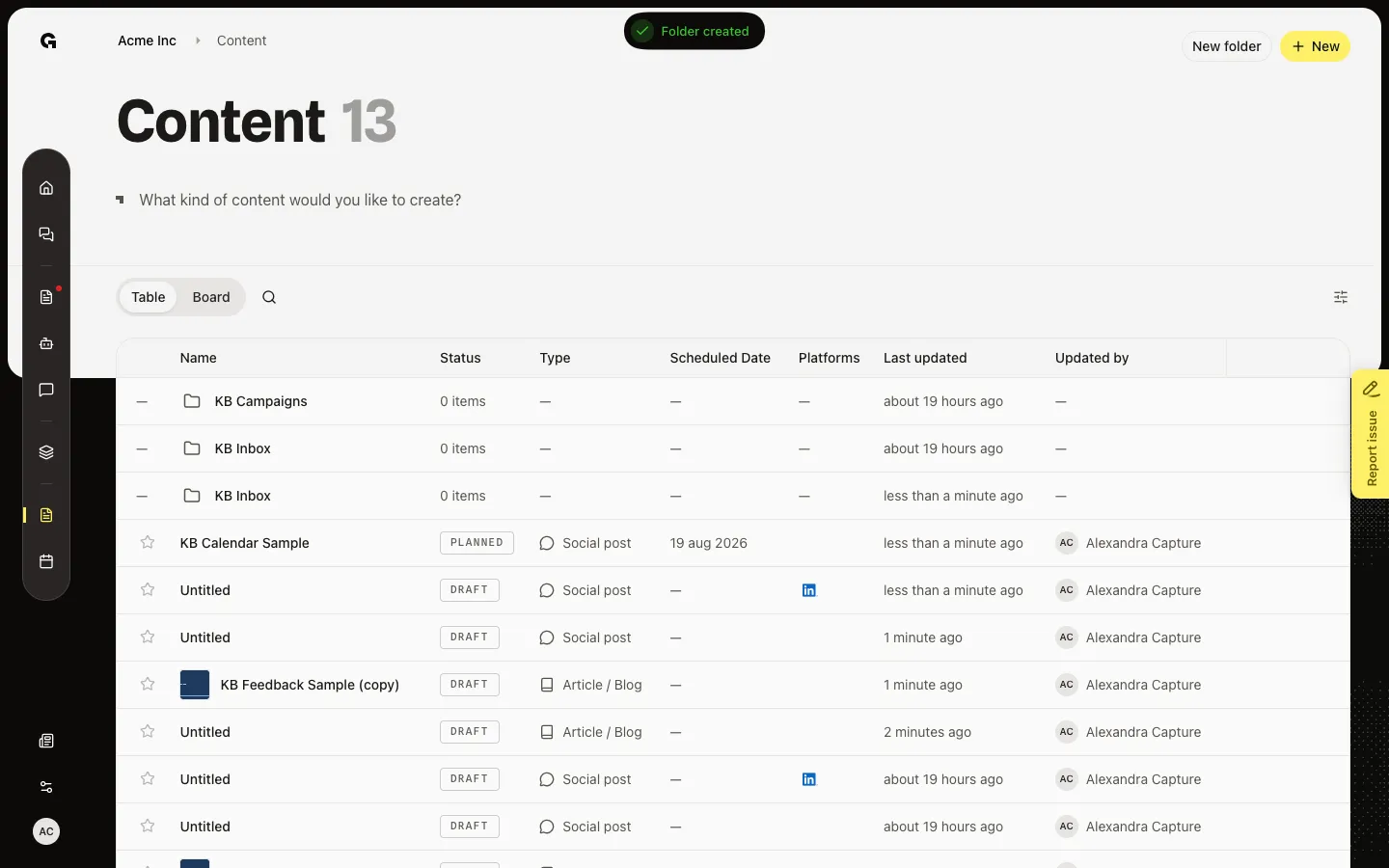
Open Move content
Hover the piece (KB Feedback Sample) and click Move. Move content lists All content (the root) and every folder. Nested folders are indented.
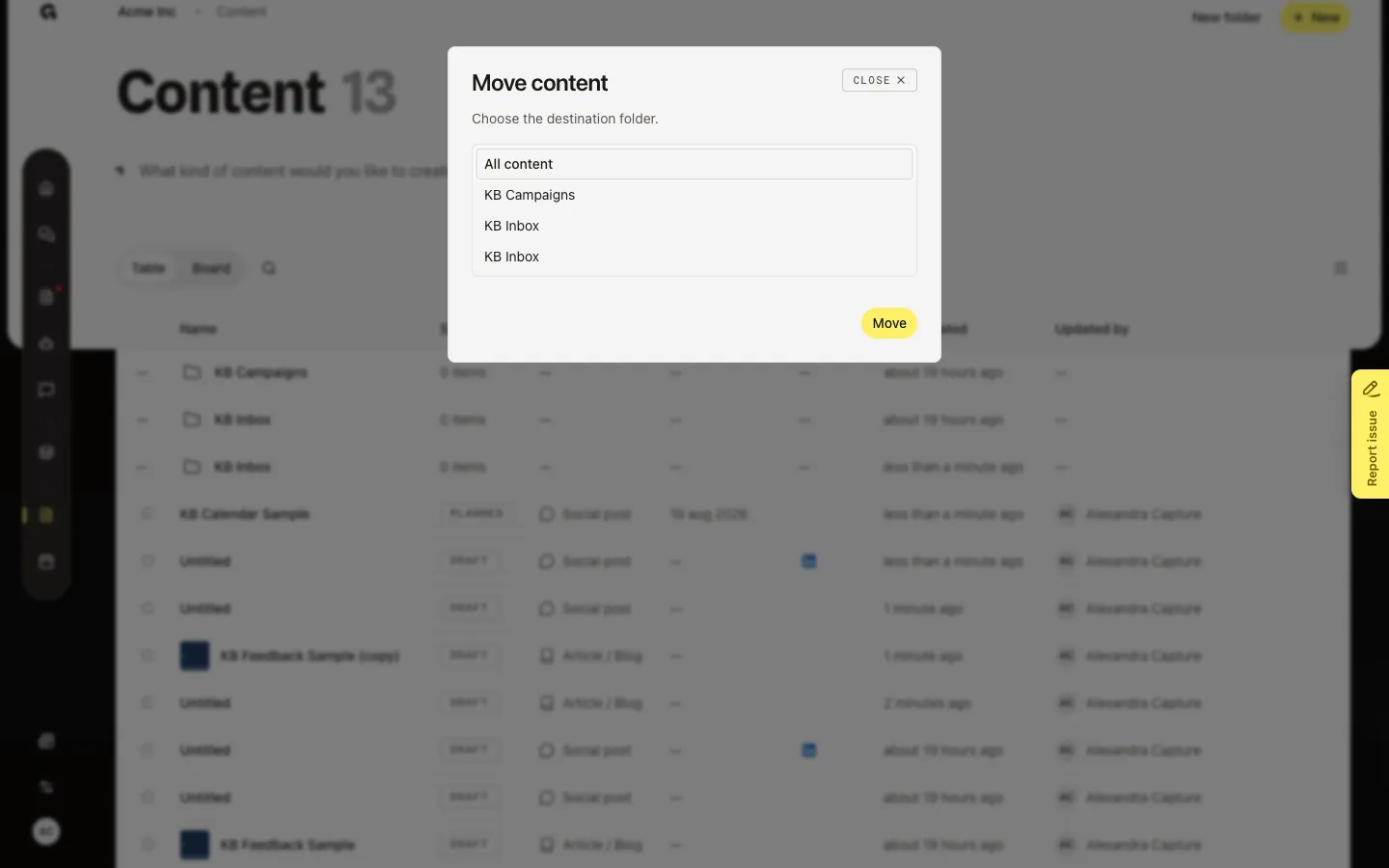
Choose the destination
Click the folder, or All content to take the piece out of a folder. Then Move. The piece leaves this table level. Open the folder to find it. You can also move a folder the same way from its row (Move folder).
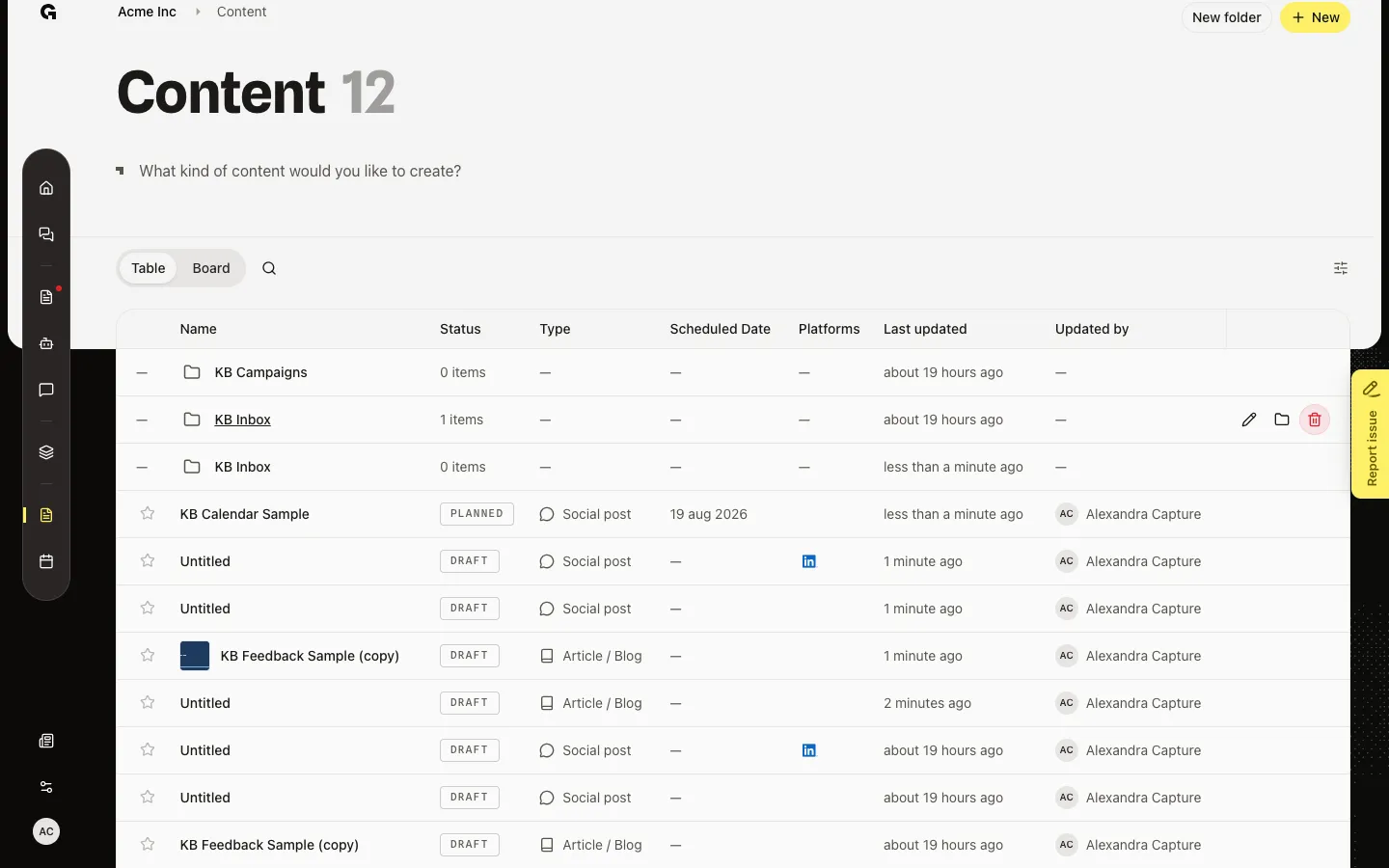
FAQ
The piece disappeared from the list.+
It is inside a folder. Open that folder, or choose All content in Move content to bring it back to the root.
Move content only shows All content.+
There are no folders yet. Create one with New folder, then move the piece.
Can I move a piece from the board?+
No. Move is a Table row action. Switch to Table, hover the row, then Move.