Manage product documents
Open a product’s documents page and drop files so Growf can use them as offer context.
Product documents are files tied to one offer: briefs, spec sheets, one-pagers. Growf can use them when it writes about that product.
2 steps · About 2 minutes
Open product documents
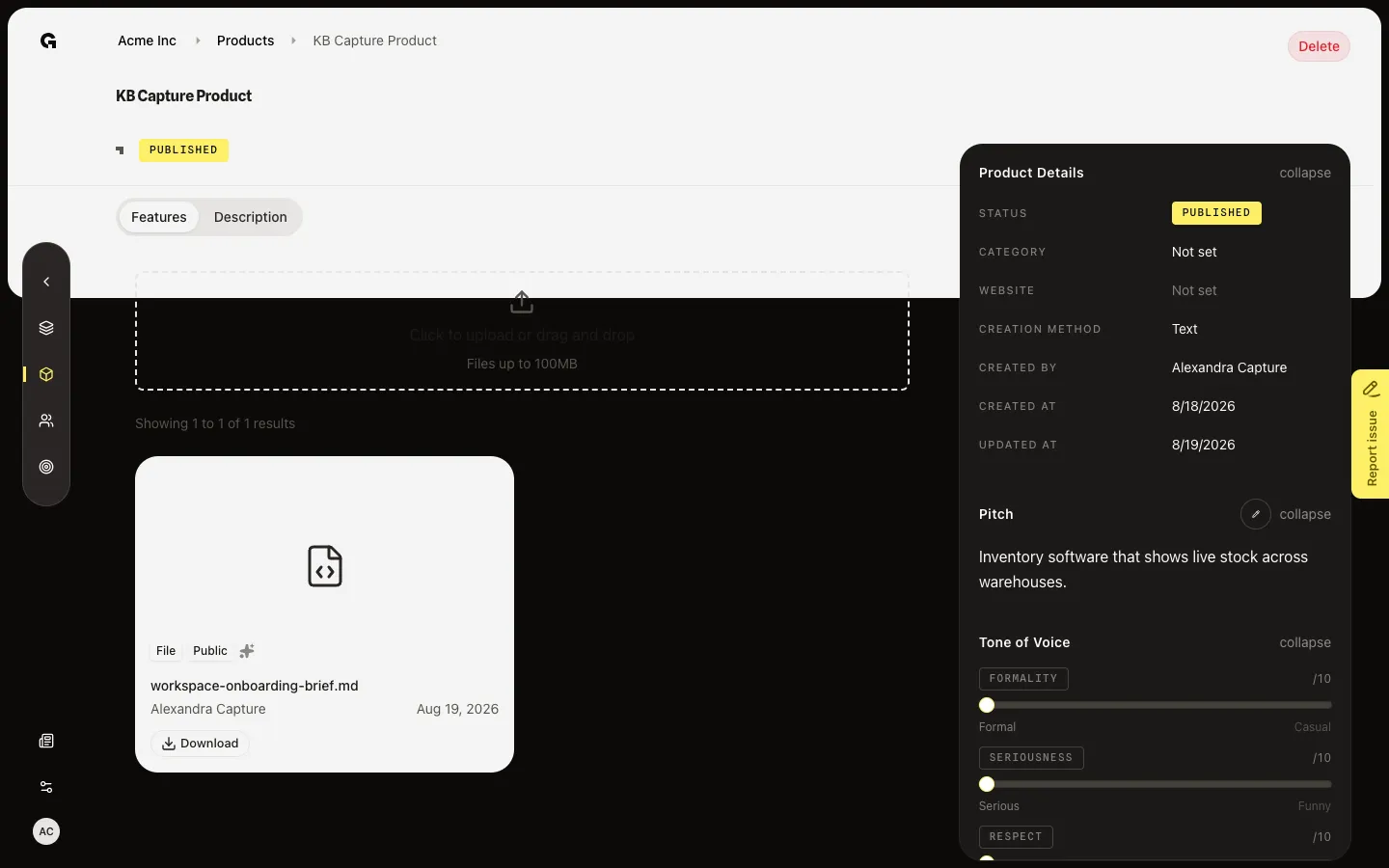
Open this product’s documents URL, or go to `/strategy/products/{id}/documents`. This page is not a tab next to Features and Description. The dropzone says Click to upload or drag and drop. Files you already linked to this product show as cards with name, who uploaded them, and the date.
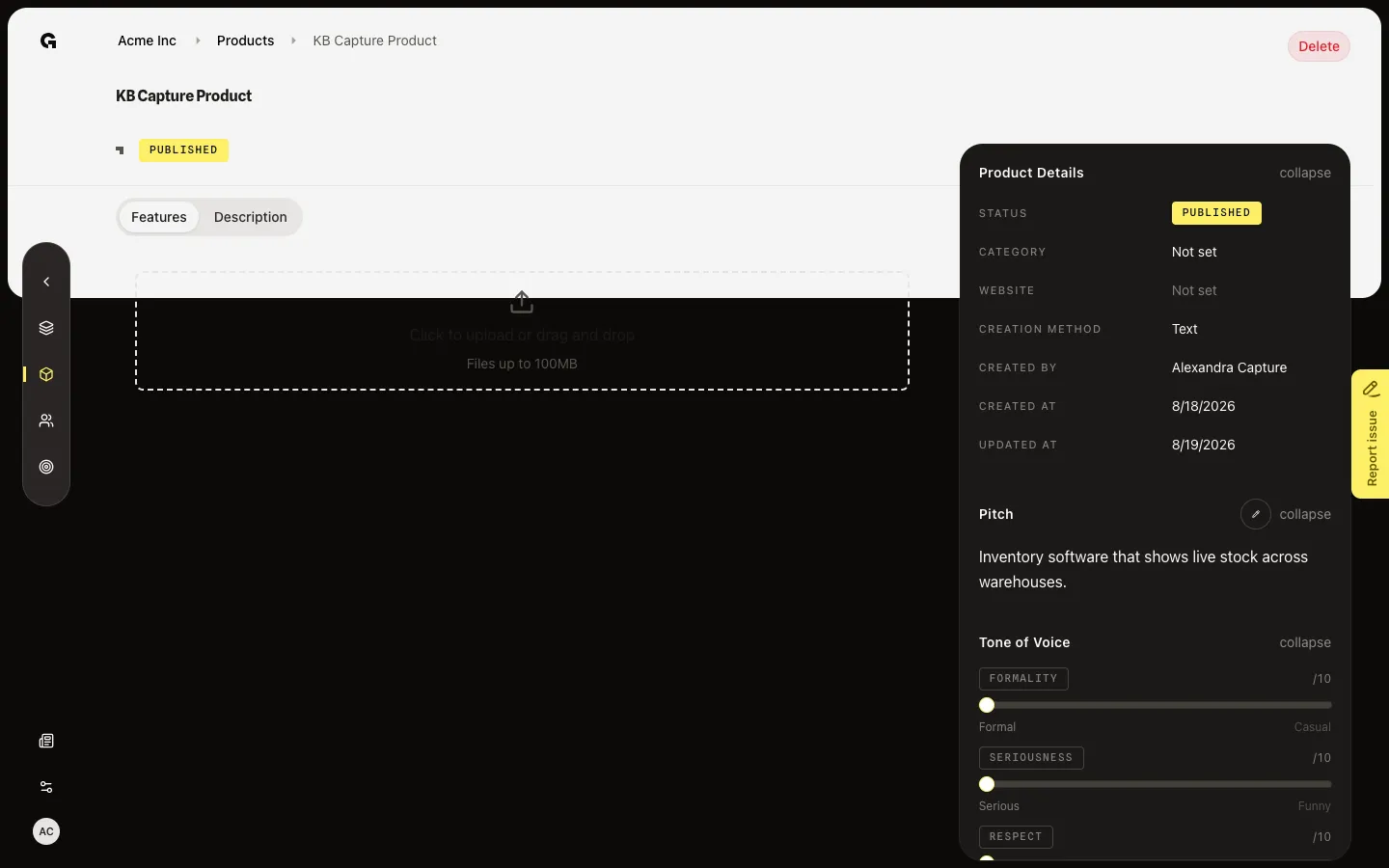
Upload a file
Drop a file on File dropzone, or use the hidden file input. Growf uploads on drop and links the file to this product. A progress card shows while it runs. When it finishes, the file appears as a card. Use briefs, spec sheets, or one-pagers the team already trusts. Large files follow the same workspace document limits.
FAQ
I see Features and Description but no Documents tab.+
Documents is its own page on the product, not a tab in that bar. Open the documents URL for this product, or ask someone to send the link. Features and Description stay the two tabs in the header.
The dropzone is missing or upload fails.+
Uploading needs permission to add workspace documents and to update the product. Ask an admin. If upload starts and then errors, try a smaller file or a supported type.
Are these files only for this product?+
They are workspace documents linked to this product. Personas that share this product through an ICP can see the same files on Manage persona documents.