Browse content on the board
Switch Content to Board to see drafts by stage, from Draft through Posted.
The board is a stage view of the same Content list. Anyone who can open Content can use it. Table is for names, folders, and row actions. Board is for seeing what is waiting on feedback, ready to plan, or already posted.
3 steps · About 3 minutes
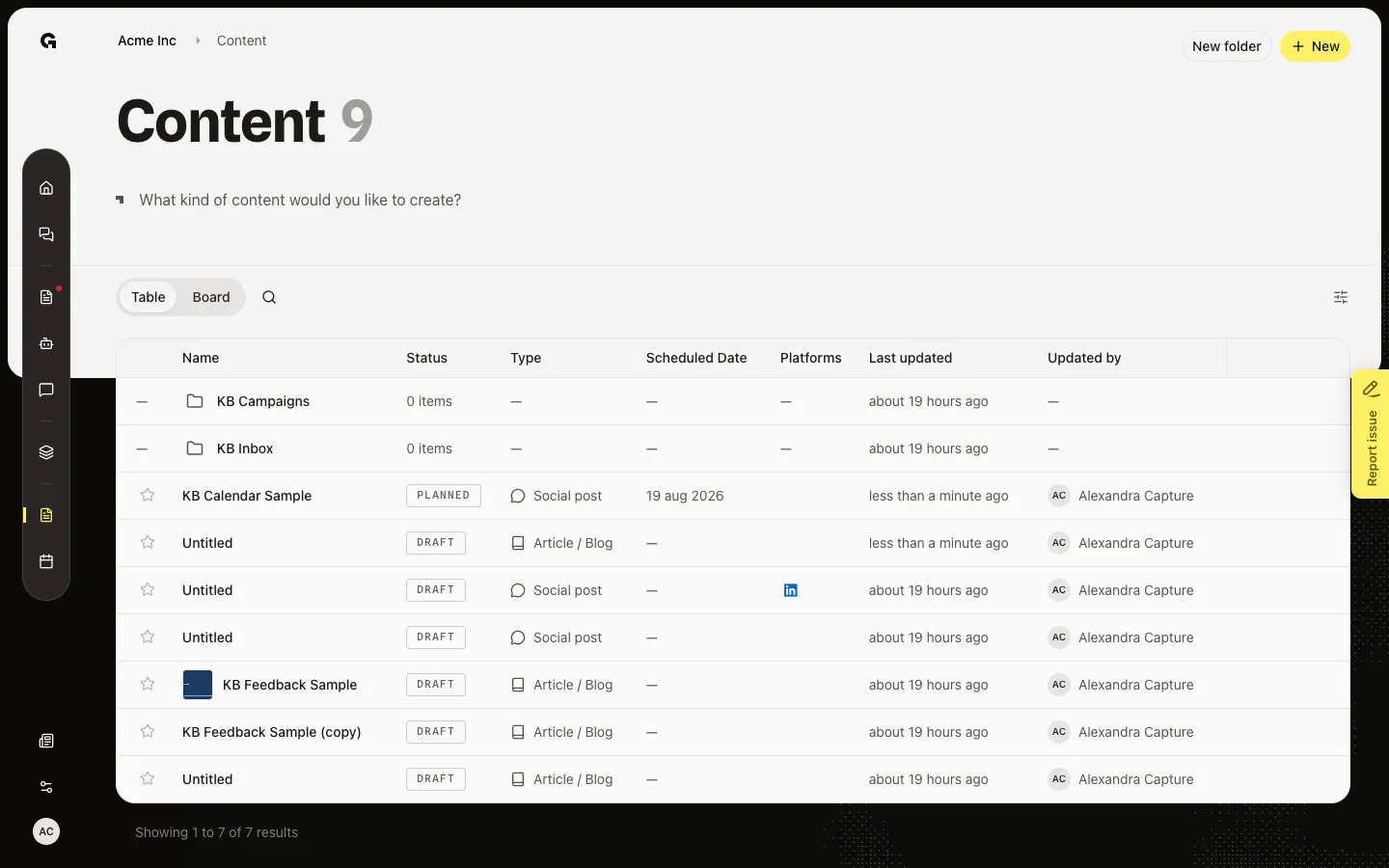
Open Content as Table
Choose Content. Table is the default. Each row is a folder or a piece. Status on the row follows the same stages as the board. KB Feedback Sample stays on this list after seed.
Switch to Board
Choose Board. Columns are Draft, Sent for Feedback, Has Feedback, Ready to Schedule, Planned, and Posted. A piece moves when feedback or the schedule changes — not when you drag it. Open feedback puts a piece in Sent for Feedback. An approved piece with no open request is Ready to Schedule. A set date is Planned. A live post is Posted.
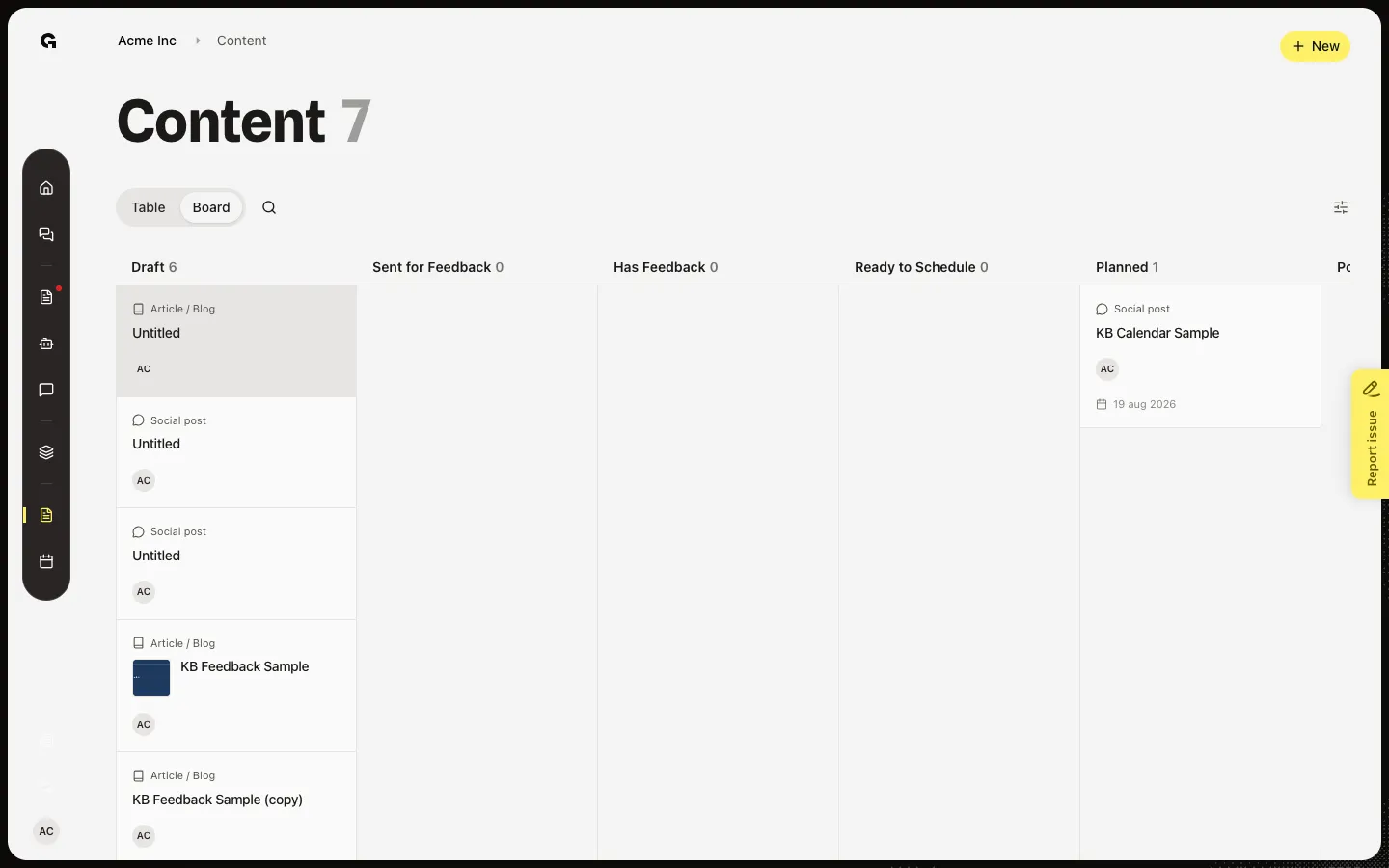
Open a card
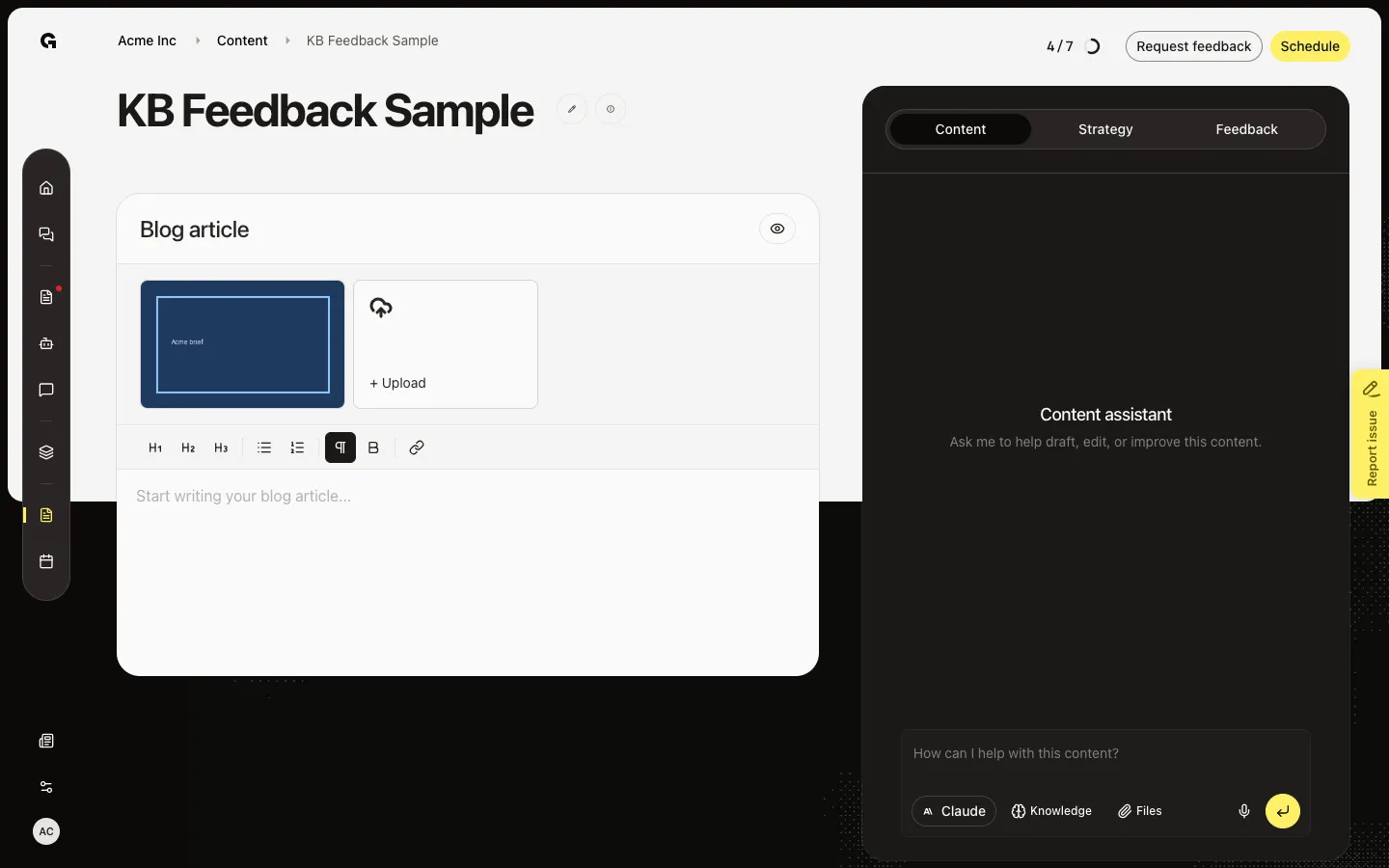
Click a card to open the editor. Filters above the board still apply (type, creator, platforms, documents, favorites). Folders do not appear on the board — switch back to Table to open a folder.
FAQ
Why is a board column empty?+
That stage has no matching pieces. Check filters. A new draft stays in Draft until someone requests feedback or you set a schedule.
Can I drag a card to another column?+
No. The board reflects status. Request feedback, approve or reject, or set a schedule to move a piece.
Where are folders on the board?+
The board ignores folders and shows every matching piece. Use Table to open, rename, or move folders.
Why is KB Feedback Sample in Sent for Feedback?+
Seed created an open feedback request on that article. The board uses open and answered requests, not only the Draft label in the database.